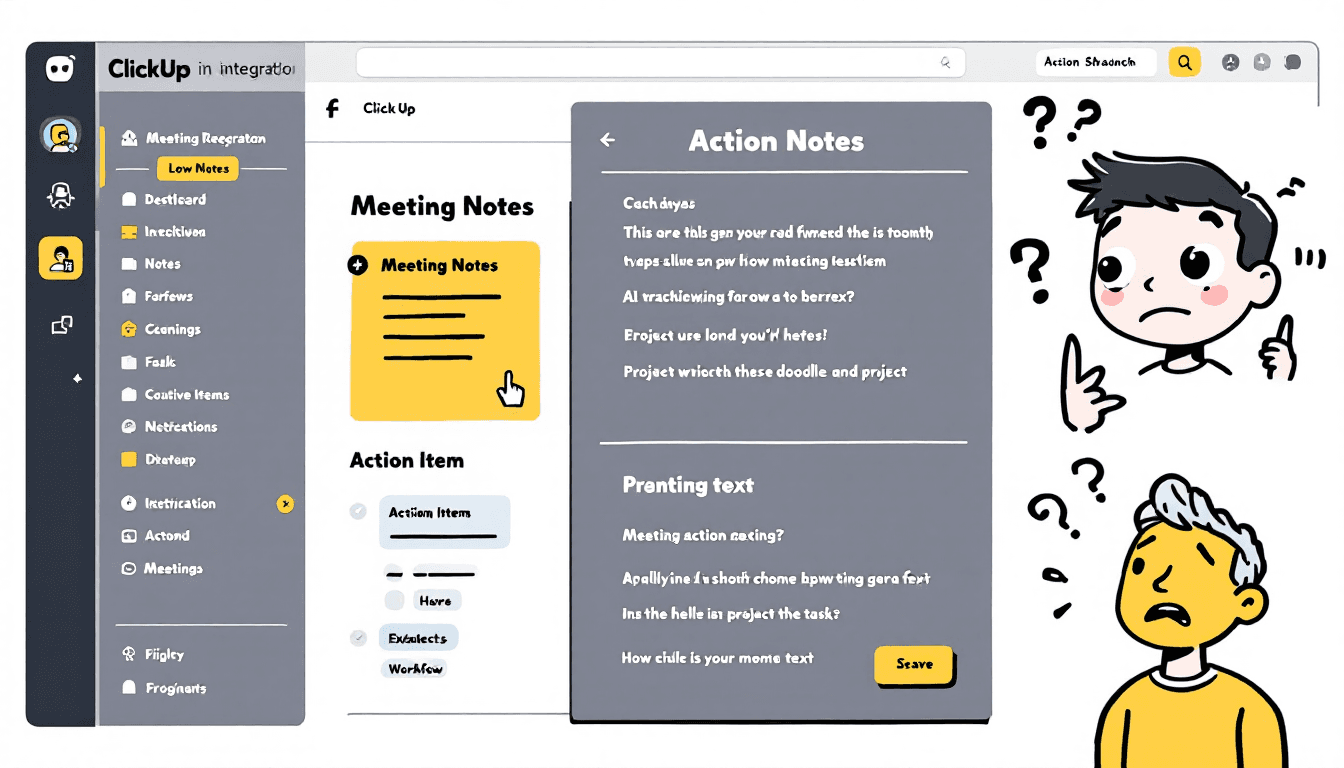
🔗 Integration Overview
ClickUp's meeting tool integrations transform your post-meeting workflow by automatically creating tasks, extracting action items, and organizing project updates. Here's what you can achieve:
- Automatic Task Creation:Convert action items into ClickUp tasks with assignees and due dates
- Smart Project Organization:Route meeting outcomes to appropriate projects and spaces
- Action Item Extraction:AI identifies and categorizes actionable items from transcripts
- Progress Tracking:Link meeting decisions to project milestones and goals
- Team Synchronization:Ensure all stakeholders see relevant updates in their workspace
🛠️ Supported Meeting Tools
🔥 Fireflies.ai
Integration Type:Native ClickUp integration
- Automatic task creation from action items
- Meeting summary attachments
- Custom field mapping
- Real-time sync
🦦 Otter.ai
Integration Type:Zapier automation
- Meeting transcript import
- Action item detection
- Custom workflow triggers
- Multi-step automations
📝 Notta
Integration Type:API webhook + Zapier
- Webhook-based task creation
- Multilingual support
- Template customization
- Batch processing
🔧 Other Compatible Tools
- Grain(Zapier)
- Supernormal(Zapier)
- tl;dv(Zapier)
- Sembly(API)
📋 Step-by-Step Setup Guide
🔥 Setting Up Fireflies → ClickUp
Step 1: Enable ClickUp Integration in Fireflies
- Log into your Fireflies dashboard
- Navigate toSettings → Integrations
- FindClickUpand clickConnect
- Authorize Fireflies to access your ClickUp workspace
Step 2: Configure Automation Rules
- Set upAction Item Detectionparameters
- Choose target ClickUpSpaceandProject
- Map meeting participants to ClickUp team members
- Configure task templates and custom fields
Step 3: Test the Integration
- Record a test meeting with action items
- Verify tasks appear in ClickUp within 5-10 minutes
- Check assignees and due dates are correctly set
- Adjust automation rules if needed
⚡ Setting Up Zapier Automations
Step 1: Create Zapier Account & Connect Apps
- Sign up forZapier(free plan available)
- Connect your meeting tool (Otter, Notta, etc.)
- Connect your ClickUp workspace
- Test both connections for authentication
Step 2: Build Automation Workflows
Example Workflow: Otter → ClickUp
- New meeting transcript in Otter
- Only meetings with action items
- Action 1:Extract action items using AI
- Action 2:Create ClickUp task for each item
- Action 3:Assign based on @mentions in transcript
Step 3: Advanced Automation Features
- Multi-step Zaps:Parse transcript → Extract items → Create tasks → Send notifications
- Conditional Logic:Route different meeting types to different projects
- Data Formatting:Clean up transcript text and structure task descriptions
- Error Handling:Set up backup actions for failed integrations
🎯 Action Item Extraction & Processing
AI-Powered Action Item Detection
Modern meeting tools use AI to automatically identify actionable items from meeting transcripts. Here's how different tools handle this crucial feature:
🤖 What AI Looks For:
- Action verbs: "will", "should", "need to", "must"
- Assignment phrases: "@John will handle", "Sarah to review"
- Deadline mentions: "by Friday", "next week", "end of month"
- Task indicators: "TODO", "action item", "follow up"
- Decision outcomes: "we decided", "agreed to", "approved"
📝 ClickUp Task Structure:
- Task Title:Extracted action description
- Relevant context from meeting
- Detected from transcript mentions
- Due Date:Parsed from deadline references
- Based on urgency indicators
- Meeting type, project, attendees
⚙️ Workflow Optimization Tips
👥 Team Collaboration Setup
- Standardize @Mentions: Train team to use consistent @mention format ("@john.smith" instead of "John" or "JS")
- Meeting Templates: Create ClickUp task templates for different meeting types (standup, planning, review)
- Set up rules to automatically assign tasks based on department or role keywords
- Progress Tracking: Link action items to larger projects and milestones for better visibility
📁 Smart Project Organization
By Meeting Type:
- Daily Standups → "Daily Tasks" list
- Sprint Planning → "Sprint Backlog"
- Client Calls → "Client Projects"
- Strategy Meetings → "Strategic Initiatives"
By Urgency Level:
- Urgent → High priority, due today
- Important → Medium priority, this week
- Planning → Low priority, future sprints
- Follow-up → Review and discuss
🎛️ Custom Fields for Meeting Tasks
Meeting Info:
- Meeting Title
- Meeting Date
- Meeting Type
- Recording Link
Task Details:
- Original Quote
- Context Notes
- Dependencies
- Resources Needed
- Review Date
- Status Check
- Stakeholders
- Success Metrics
🔧 Troubleshooting Common Issues
❌ Common Problems & Solutions
Tasks Not Being Created
- Check API connection status in both tools
- Verify ClickUp permissions include task creation
- Ensure meeting tool has action item detection enabled
- Review automation filters and triggers
Wrong Project Assignment
- Update project mapping rules in integration settings
- Use meeting title keywords to route tasks correctly
- Set up calendar integration to detect project context
- Create manual override options for edge cases
Missing Assignees
- Ensure team member names match between tools
- Set up email-based matching for user identification
- Use @mention training to improve AI detection
- Configure fallback assignee for unmatched items
💡 Performance Optimization
- Batch Processing: Group multiple action items from same meeting into single task creation request
- Rate Limiting: Add delays between API calls to avoid hitting limits (especially important for high-volume teams)
- Duplicate Prevention: Set up duplicate detection based on meeting ID and timestamp to avoid multiple task creation
- Error Logging: Enable detailed logging to identify and fix integration issues quickly
🚀 Advanced Integration Features
🧠 AI-Enhanced Workflows
Smart Prioritization
Use AI to analyze meeting tone, urgency indicators, and stakeholder involvement to automatically set task priorities.
- Detect urgency keywords ("ASAP", "critical", "blocker")
- Analyze speaker emphasis and tone
- Consider meeting attendee seniority
Context Enrichment
Automatically add relevant context, links, and background information to each created task.
- Link to relevant documents mentioned
- Add transcript snippets with full context
- Connect to related existing tasks/projects
🔄 Multi-Tool Integration Strategy
For teams using multiple meeting tools, create a unified ClickUp workflow that handles different input sources consistently.