If you're looking for the best free voice to text software, your best bet often starts with the tools you already have. Think of the built-in options like Google Docs Voice Typing for web-based work or Apple Dictation for anyone in the Apple ecosystem. For something more powerful, like transcribing a team meeting, the free plan from a tool like Otter.ai is a fantastic starting point, even offering speaker identification.
Finding the Right Free Transcription Solution
Choosing the right free tool is about more than just dictating an email. Modern voice-to-text software is built to capture messy meeting notes, help organize your thoughts, and even fuel business workflows by turning spoken words into usable data. It’s no surprise that demand for these solutions is growing as teams everywhere adapt to new ways of working.

The market reflects this shift. Remote teams and sales professionals, in particular, rely on accurate transcription to keep things moving. In fact, the AI speech-to-text market is set to expand by an incredible USD 8.29 billion between 2025 and 2029, growing at a compound annual rate of 28.8%. This rapid growth shows just how critical free software has become for taming the unstructured data that comes from all our virtual calls and meetings.
Top Free Voice to Text Software at a Glance
To help you get started quickly, I've put together a quick-look table of my top recommendations. This should give you an immediate sense of which tool fits your needs best.
| Tool Name | Best For | Key Free Feature | Accuracy Rating |
|---|---|---|---|
| Google Docs Voice Typing | Writers and students | Seamless integration with Google Docs and real-time dictation. | High (92%+) |
| Apple Dictation | Mac and iOS users | System-wide integration and offline functionality. | High (95%+) |
| Otter.ai Free Plan | Meeting transcription | Real-time transcription with speaker ID (up to 300 mins/month). | Very High (96%+) |
| Windows Voice Access | Windows PC control | Deep OS integration for hands-free navigation and dictation. | Good (90%+) |
While we'll explore each of these in more detail, the options above are the strongest free contenders out there. They offer a great balance of accuracy and practical features that solve real-world problems without costing a dime.
It's also worth noting that transcription technology is popping up in unexpected places. For example, many of the latest AI video editing tools that offer transcription capabilities now include powerful voice-to-text features. This makes tasks like creating subtitles or transcribing interviews almost effortless, showing just how essential this tech has become in all sorts of professional fields.
How to Pick the Right Free Transcription Software
Choosing the best free voice-to-text software isn't just about grabbing the first one you see. With so many options out there, it’s easy to get bogged down by endless feature lists. A smart approach helps you cut through the noise and find what actually works for you, whether you're a one-person shop or part of a big team.
The absolute most important thing to look at is transcription accuracy. But here's the catch: accuracy isn't a simple percentage. A tool that's flawless with one person speaking clearly in a quiet room might completely fall apart during a messy team call with people talking over each other.
To really put these tools to the test, use audio clips from your actual work life. Record a snippet of a video call, a lively brainstorming session, and maybe a quick voice memo. This will give you a real-world feel for how each tool handles the kind of audio you deal with every day.
Look Beyond Accuracy: Features and Ease of Use
Once you’ve got a sense of accuracy, it's time to look at the other stuff that makes a tool genuinely useful. The best free software isn't just accurate; it’s also easy to use and fits right into how you already work.
Here are the core things to check:
- Language and Dialect Support: Does it understand different accents or the languages your team speaks? This is a deal-breaker for international teams.
- Platform Availability: Can you use it on your computer, tablet, and phone? You want something that’s available wherever you need it.
- Speaker Identification: A tool that can tell who said what (this is called diarization) is a huge time-saver for meeting notes. See if the free version has it and if it actually works well.
Know the Catch: Free Plan Limits and Privacy
Let's be real—free software always has some strings attached. You need to know what they are before you invest your time and trust it with your data.
Keep an eye out for these common gotchas:
- Minute Caps: Almost every free plan will cap how much audio you can transcribe each month. For example, Otter.ai gives you 300 free minutes. Is that enough for you?
- Export Options: Can you actually get your transcript out in a format you need, like DOCX for reports or SRT for videos? Being stuck with just a basic TXT file can mean a lot of extra work.
- Locked Features: Things like custom vocabularies (so it learns your company's lingo), live transcription, or handy integrations are almost always saved for the paid versions.
And last but definitely not least, read the privacy policy. Seriously. Some services might use your conversations to train their AI. If you're dealing with anything sensitive or confidential, you have to pick a tool with a rock-solid privacy policy that guarantees your data stays yours. For any business, this is completely non-negotiable.
Comparing the Leading Free Voice to Text Tools
Choosing the right tool isn’t about which one has the longest feature list. It's about what you actually need to do. To get a real sense of how these tools perform, let's pit them against each other in three common work scenarios. We’ll look at the built-in giants—Google Docs Voice Typing and Microsoft Dictate—and a dedicated meeting specialist, Otter.ai.
This isn't a spec sheet comparison. We're diving into the real-world experience to see how each one handles the messy, imperfect audio of a typical workday. We’ll judge them on accuracy, how easy they are to get started with, and the overall feel of using them for each task.
Scenario 1: The Quick Brainstorming Session
First up: a solo brainstorming session. Picture yourself pacing around your office, rattling off ideas for a new project. You need speed and flow. The last thing you want is technology getting in your way.
Google Docs Voice Typing is brilliant in its simplicity. You just open a Doc, navigate to Tools > Voice typing, click the mic, and start talking. It’s built for this kind of continuous dictation and does a great job keeping up with a natural speaking pace. For just getting raw ideas down, it’s practically frictionless.
Microsoft Dictate, found in Word, offers a very similar experience. It's right there in the Home ribbon and gives you a clean, real-time transcript as you speak. Its accuracy is right up there with Google’s for a single speaker, making it a fantastic choice if you already live inside the Microsoft 365 ecosystem.
Otter.ai feels a little heavy for this. Sure, you can hit "Record" and start talking, but its whole interface is designed around conversations and meetings. It works just fine, but the extra features like speaker labels and timestamps are just noise when all you're doing is a simple brain dump.
Ultimately, this comes down to your primary work environment. If you're a Google Workspace person, Voice Typing is a no-brainer. If your workflow is all about Microsoft Office, Dictate is the logical pick.
Scenario 2: The One-on-One Sales Call
Next, let's tackle a virtual one-on-one sales call. The demands here are completely different. You need to capture what both people are saying, tell who said what, and have a transcript you can easily scan later for action items and client feedback.
This is where Google Docs Voice Typing and Microsoft Dictate hit a wall. These tools are designed to listen to one audio source—your microphone. They have no way of distinguishing between you and the person on the other end of the line. You'll end up with a single, confusing block of text that's almost impossible to untangle.
And this is precisely where Otter.ai shines. Its free plan was practically built for this. By integrating with Zoom, Google Meet, or Microsoft Teams, it can join your call like another participant, listen to everyone, and create a clean transcript with speaker labels. That simple ability to separate "Speaker 1" from "Speaker 2" is a total game-changer for reviewing calls.
- Accuracy with Crosstalk: Otter's AI is much better at handling the reality of conversations, like interruptions and people talking over each other.
- Real-Time Transcription: You can watch the transcript unfold live during the meeting and even highlight key moments as they happen.
- Post-Meeting Workflow: The transcript is searchable and easy to share, so you can quickly find that one key quote or pass notes into your CRM.
While free tools like Otter have their limits, their core function in this scenario is miles ahead of what a standard dictation feature can do. For a more detailed look at various options, you can explore our guide on the top speech-to-text software options for 2025.
Scenario 3: The Busy Team Meeting
Our final test is the toughest: a team meeting with several speakers, background noise, and maybe a few different accents. The goal here is a reliable record of who decided what, the action items assigned, and the important discussion points.
Once again, Google and Microsoft's built-in dictation tools just aren't cut out for this. They lack the most critical feature for meeting notes: speaker diarization, which is the fancy term for identifying who is speaking and when. Without it, a meeting transcript is useless.
Otter.ai is again the undisputed champion in the free category. It automatically tells the speakers apart and timestamps everything they say. The free version does have a monthly cap of 300 minutes and a 30-minute limit per conversation, but that's often plenty for smaller teams or shorter check-ins. The accuracy is surprisingly solid, even with some moderate background chatter.
To make a smart choice, it helps to see the core criteria side-by-side.
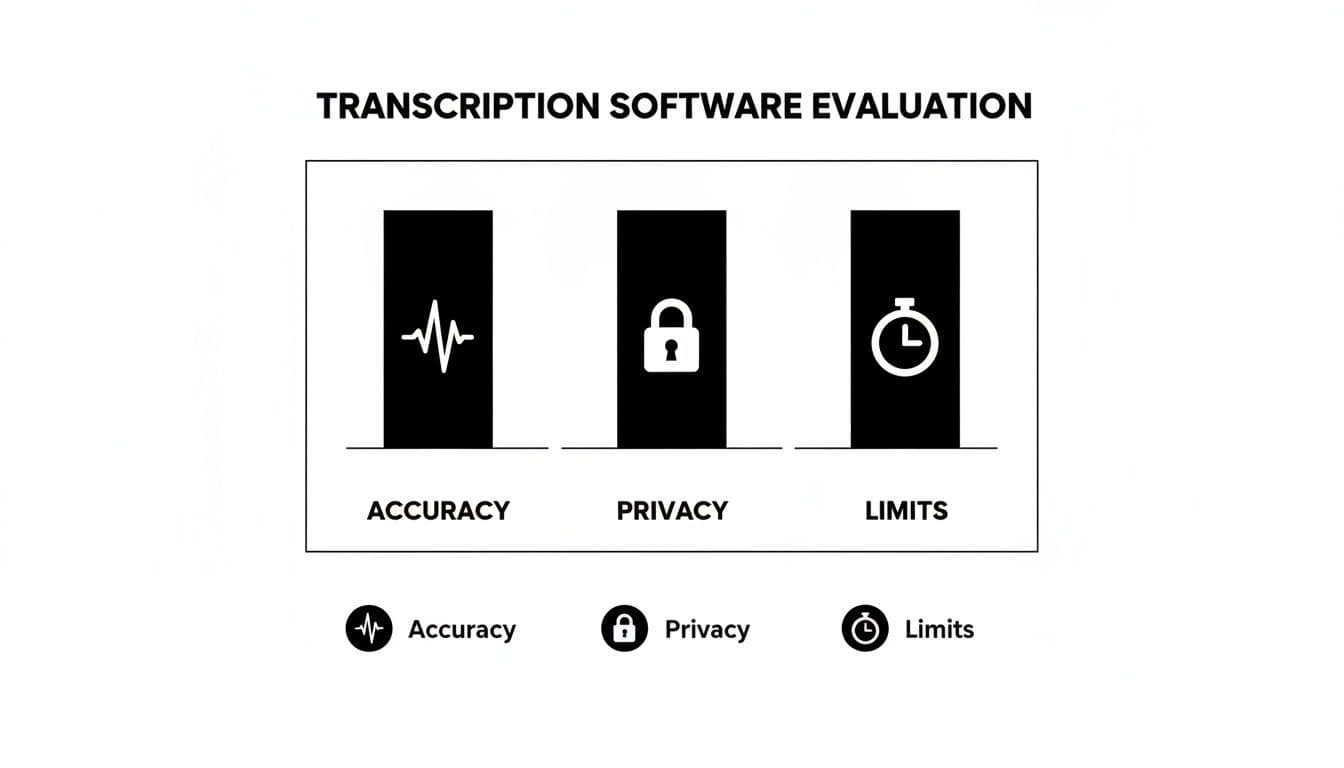
This visual is a great reminder of the classic trade-off with free software—you're often balancing great accuracy against very real limits on use and potential privacy questions.
Feature Matrix of Top Free Voice to Text Software
The market for this tech is exploding for a good reason. The global voice and speech recognition market was valued at USD 10.46 billion in 2018 and is on track to hit USD 31.8 billion by 2025. This massive growth, tracked by firms like Grand View Research, is what’s making powerful tools accessible to everyone for free. The key is knowing which tool fits which job. This table breaks it all down.
| Tool | Accuracy (Quiet/Noisy) | Supported Platforms | Free Tier Limits | Export Options | Privacy Score (1-5) |
|---|---|---|---|---|---|
| Google Docs Voice Typing | High / Low | Web (Chrome) | None | Standard doc formats | 3 |
| Microsoft Dictate | High / Low | Windows, macOS, Web | None | Standard doc formats | 4 |
| Otter.ai (Free) | Very High / Medium | Web, iOS, Android, Meeting Bots | 300 mins/month; 30 mins/meeting | TXT | 3 |
The matrix makes the choice pretty clear.
For any kind of solo work—drafting documents, taking personal notes, or brainstorming—the built-in convenience of Google Docs Voice Typing and Microsoft Dictate is impossible to beat. They are simple, surprisingly accurate, and have no limits.
But the moment you have more than one person speaking, you need a specialized tool. Otter.ai is essential. Even with the free tier's limitations, its fundamental ability to transcribe a conversation with speaker labels provides a kind of value that simple dictation software just can't touch. It turns messy talk into a structured, usable record.
Matching the Right Tool to Your Use Case
Picking the best free voice-to-text software isn't about finding one perfect tool for everything. It’s about finding the right tool for the job at hand. A feature that’s a lifesaver for a sales pro might be totally useless to a consultant drafting a report. This is why we need to think in terms of specific scenarios.
By looking at how different professionals actually work, we can move beyond generic feature lists and figure out which free software truly adds value to your specific workflow.
The Remote Sales Professional
If you're in sales, your main goal is to capture every single detail from client calls. You don't just need a transcript; you need an organized, searchable record that clearly shows who said what. This is crucial for tracking commitments, understanding pain points, and defining action items.
For this, a dedicated meeting assistant like Otter.ai’s free plan is the obvious choice. Yes, the monthly minute cap means you have to be mindful, but its ability to join your calls and automatically tell speakers apart is a non-negotiable feature for this role.
- Scenario: Transcribing a 30-minute Zoom discovery call.
- Why it works: Otter.ai gives you a timestamped, speaker-labeled transcript you can scan in seconds after the call. This lets you pull key quotes for your CRM notes or share highlights with your team without re-listening to the whole thing.
- Alternative failure: Trying to use Google Docs Voice Typing for this would mash your voice and the client’s into one messy block of text, making it almost impossible to analyze later.
The Startup Operations Manager
As an operations manager, you're constantly juggling different tasks—from team stand-ups to documenting new internal processes. Your needs are all over the place. One minute you're in a meeting with five people, the next you're dictating a new SOP by yourself. You need versatility without breaking the bank.
The best solution here is a hybrid approach. Use Otter.ai to transcribe team meetings where you absolutely need to know who said what. For solo work, like drafting documentation or brainstorming, switch over to the unlimited and instant Google Docs Voice Typing or Microsoft Dictate.
This two-tool strategy gives you the best of both worlds. You get accurate, detailed meeting records when it matters and unlimited dictation for content creation, which perfectly suits the dynamic nature of an ops role.
The Independent Consultant
If you’re a consultant or freelancer, your world revolves around documenting client interviews, capturing research notes, and drafting detailed reports. The biggest challenge is turning hours of spoken information into well-structured, polished documents. Accuracy and a smooth editing workflow are everything.
For this kind of work, Google Docs Voice Typing is often the best tool for the job. Because it’s built right into the word processor, the journey from speaking to editing is completely seamless. You can dictate a paragraph, pause to type a few edits, and then start speaking again without ever leaving the app.
The speech and voice recognition industry is exploding, with market projections expecting it to hit USD 23.11 billion by 2030. This growth is what powers incredible free tools that can cut down your manual note-taking time by over 60%, even on calls with background noise.
- Use Case: Dictating a project proposal right after a client workshop.
- Why it excels: The words appear directly in the document you’re building. You can use voice commands for basic formatting like "new paragraph" and then grab your keyboard for finer tuning. It makes for a very efficient drafting process.
- Where it fits: This method is perfect for anyone whose final output is a written document—think reports, articles, or detailed client summaries.
This technology isn't just stuck on our computers, either. Specialized hardware like leading earbud translator devices use the same advanced voice-to-text engine for real-time communication when traveling abroad. It just goes to show how versatile this tech has become. The key is simply matching the right application to the problem you're trying to solve.
Tips for Improving Transcription Accuracy
Picking the right free voice-to-text software is only half the battle. The truth is, the quality of your transcript often hinges more on your audio setup than the tool you're using. Even the most powerful AI can't make sense of muffled, noisy recordings.
Getting a clean, clear audio signal should be your number one priority. You don't need a high-end recording studio, but a few simple tweaks can turn a jumbled, inaccurate transcript into something you can actually use.
Optimize Your Audio Environment
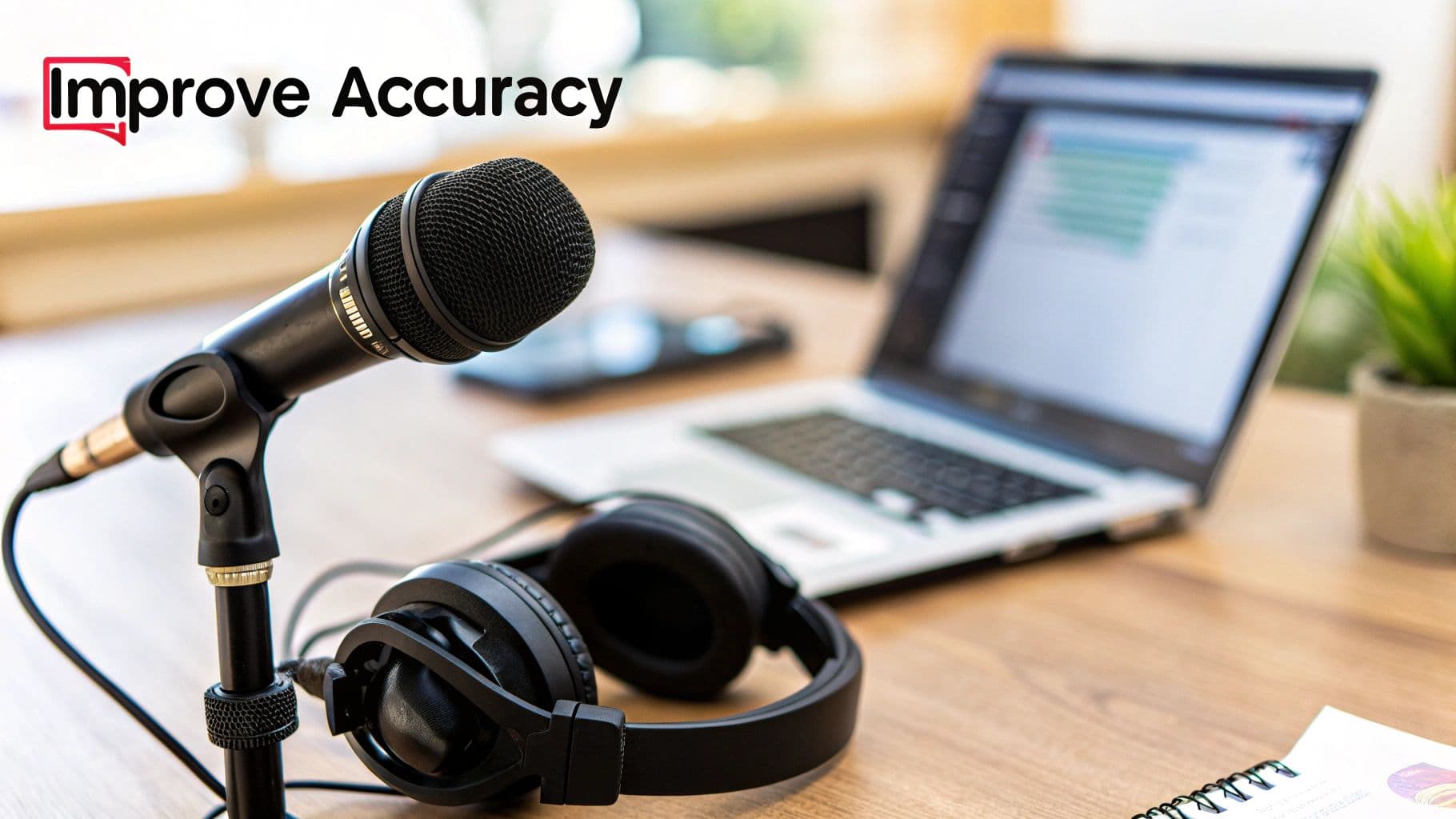
Think of your microphone as the front door for your voice—its quality and placement are everything. Your laptop’s built-in mic might be convenient, but it’s usually the main culprit behind transcription mistakes. It picks up everything: keyboard taps, whirring fans, and the echo of the room.
A basic external USB microphone or even the mic on a decent headset will give you a much cleaner sound. Place it close to your mouth, but not so close that you hear every breath and "pop." This simple step makes sure your voice is the main event.
Minimizing background noise is just as important. Before you hit record or start speaking, take a quick scan of your surroundings.
- Close any open windows to keep street noise out.
- Shut off fans, TVs, or noisy air conditioners.
- If you can, move away from chatty colleagues or family members.
These little adjustments do wonders by reducing the audio chaos the software has to sift through, letting it zero in on your words.
Master Your Speaking and Formatting Workflow
The way you speak has a direct impact on the transcript's quality. These AI models are trained on natural speech patterns, so there's no need to talk like a robot. Just speak clearly at a steady, moderate pace. Make sure to enunciate, especially when you're using technical jargon or complex words.
Beyond that, learning a few simple voice commands can save you a ton of editing time later on. Most dictation tools are built to recognize verbal cues for punctuation and basic formatting.
Common Voice Commands to Learn:
- "Period" or "Full stop": Inserts a period (.)