So, you need to record a Webex meeting. The good news is it's incredibly straightforward once you know where to look. As the host, just find the Record button at the bottom of your meeting window, give it a click, and you're rolling.
The first and most important choice you'll have to make is where you want that recording to live: in the cloud or on your local computer. This decision really shapes everything that comes after, from how you share it to what you can do with it.
Your Quick Guide to Recording in Webex
Mastering the record function in Webex is less of a "nice-to-have" and more of a core skill these days, especially with so many of us working remotely. It's how we keep a record of critical decisions, save training sessions for new hires, and make sure everyone's on the same page, even if they couldn't make the live call.
Let’s break down your two main options.
- Record to the cloud: This is my go-to recommendation for most situations. It saves your meeting as a standard MP4 file directly to your Webex account. Sharing is as simple as sending a link, and you get access to cool features like automatic transcripts. It’s built for collaboration.
- Record on my computer: This option saves the file right to your hard drive. It's a solid choice if you need to access the file offline or plan to do some heavy-duty video editing with other software. The one catch? It saves in a proprietary WRF format, so you'll have to convert it before anyone else can watch it.
This simple diagram shows the two paths your recording can take.
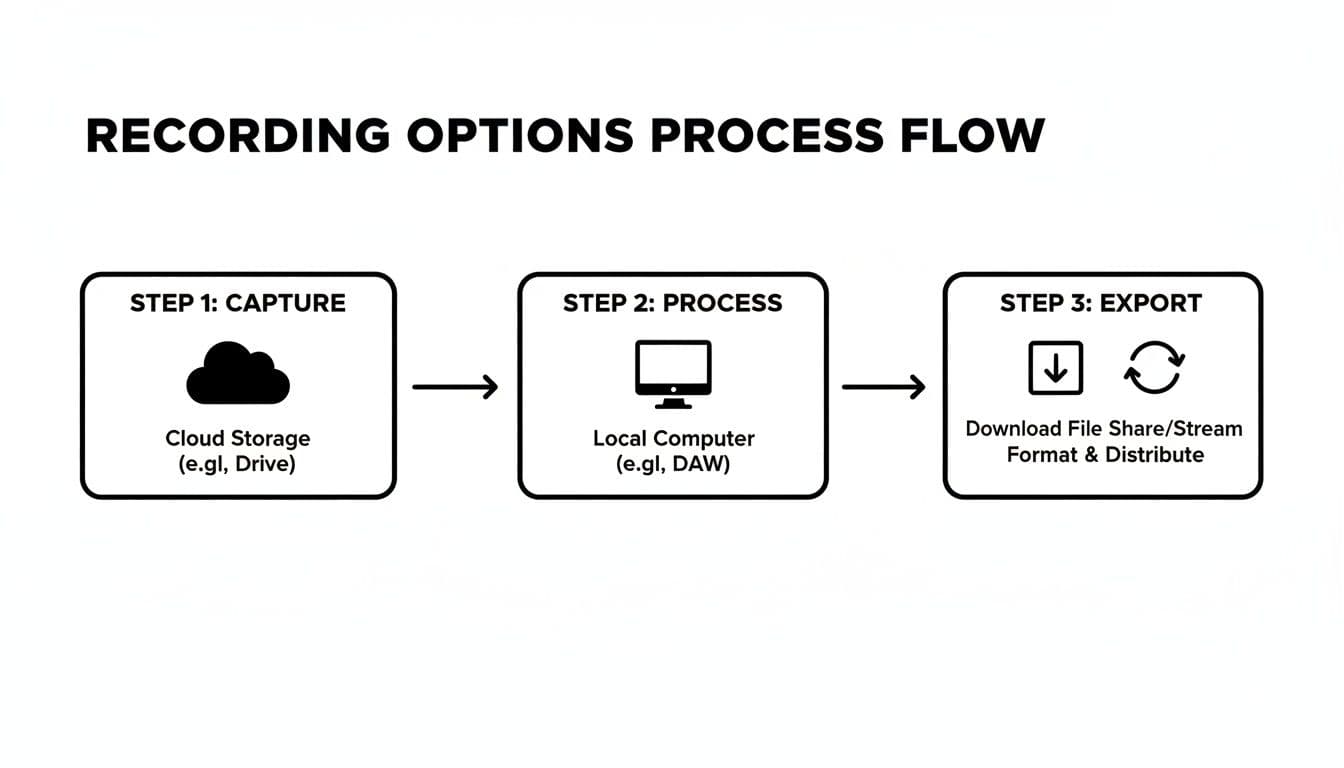
As you can see, the cloud option is a much more direct route from capture to sharing, whereas the local recording requires that extra conversion step before it’s ready.
To make the choice even clearer, here's a quick side-by-side look.
Webex Recording Quick Comparison
| Recording Type | Storage Location | Best For | Key Feature |
|---|---|---|---|
| Cloud Recording | Your Webex account | Easy sharing, team access, and quick recaps | Generates a shareable link and supports automatic transcription. |
| Local Recording | Your computer's hard drive | Offline access and advanced video editing | Gives you a raw file for personal storage and post-production. |
Ultimately, choosing the cloud is about convenience and speed, while local recording offers more control for specific post-meeting workflows.
Why Recording Matters More Than Ever
In today's work environment, we're all trying to escape "meeting overload." Recording sessions has become an essential strategy. Think about it: Cisco Webex hosts a staggering 650 million meeting participants each month as of 2025. That's a massive amount of information being exchanged.
With about 11% of the video conferencing market, Webex is a huge player. This is exactly why tools that can create automated summaries are becoming so critical. Nobody has time to re-watch hours of footage. If you're curious about the broader trends, digging into more video conferencing statistics can be really eye-opening.
Recording a Webex Meeting from Your Desktop
For most of us, the desktop app is our Webex home base. It’s where project managers stash weekly syncs for team members who couldn't make it, and where sales teams save client demos to use as training material later on. Knowing your way around the recording function here is a core skill.
Thankfully, the process is pretty straightforward. Once you’re in a live meeting, just look at the control bar at the bottom of the screen. You’ll see the Record button—it’s the one with the classic circular icon.
It’s hard to miss once you know where to look.
Clicking that button kicks everything off and immediately asks you the most important question: where do you want to save this thing?
Cloud or Computer? Choosing Where to Save
After you hit Record, a small window pops up giving you a choice between saving to the cloud or right to your computer. This isn't just a simple file-saving decision; it really shapes how you can access and share the recording afterward.
- Saving to the Cloud: This is what most people do, and for good reason. Your recording is saved as a standard MP4 file directly to your Webex account. Sharing is as easy as sending a link, and it enables powerful features like automatic transcription.
- Saving to Your Computer: This option saves the recording locally as a WRF file. It's a good choice if you need an offline copy or plan to do some heavy-duty video editing with other software. Just keep in mind that you'll need the Webex Player to watch it or convert it to an MP4 for easier sharing.
Once you’ve made your choice and the recording is active, you’ll see a little red dot appear in the top-right of your meeting window. That’s your confirmation that Webex is capturing everything. From that same spot, you can pause or stop the recording whenever you need to.
Why This Matters in a Business Context
In a large company, being able to reliably record meetings isn't just a nice-to-have feature—it’s critical. It's a big reason why Webex has become the world's largest cloud calling provider, now supporting an astonishing eight billion monthly calls and 70 million webinar attendees.
For IT leaders and CTOs, recording is a lifeline for compliance, training, and making sure institutional knowledge doesn’t walk out the door. If you’re interested in the enterprise side of things, you can dive deeper into how Webex powers large-scale communication with these latest industry insights on ucmarketing.co.uk.
So, whether you're capturing a quick team huddle or a formal all-hands meeting, the desktop app gives you a solid, no-fuss way to get it done. Just remember to look for that little red dot, and you’ll know you’re all set.
Recording From Your Phone or a Web Browser

Let's face it, your office isn't always an actual office. Sometimes it's a coffee shop, an airport terminal, or even the passenger seat of a car. When you’re away from your main computer, knowing how to record a Webex meeting right from your phone or a web browser is a lifesaver for capturing important discussions on the go.
This is especially true for anyone in a mobile-first role, like a consultant or a field sales rep. This kind of flexibility means you never miss a critical client detail just because you had to join a call from your tablet. The process is designed to be pretty intuitive, but there are a few key differences from the desktop app you should know about.
The biggest one? Storage. When you record from mobile or the web, your only option is to save the meeting to the cloud. Local recording is not available on these platforms. Honestly, this makes a lot of sense—you probably wouldn't want a two-hour meeting file gobbling up all the space on your iPhone anyway.
Firing Up a Recording on the Mobile App
Good news for those who switch between devices: the steps to start a recording are virtually identical whether you're using an iPhone or an Android. No need to relearn the process.
Once you're in the meeting as a host, here's how to get it rolling:
- First, tap the More options button, which usually looks like three dots.
- From the menu that pops up, just select Record.
- A little red dot will appear to let you know the recording is live.
You can pause or stop the recording at any point by tapping that same icon. It's a simple, one-tap process built for speed. Once the meeting is over, Webex handles the rest, automatically processing the recording and saving it to your cloud account.
Kicking Off a Recording from the Web App
What happens if you're on a device where you can't install software, like a Chromebook or a public computer? The Webex web app is your go-to. The interface is designed to look and feel almost exactly like the desktop version, so you’ll feel right at home.
To start recording from your browser, simply click the Record button you see in the bottom control panel. The recording kicks off right away and saves directly to the cloud.
Just like on mobile, a clear visual cue will confirm the session is being recorded. This browser-based approach gives you full recording power without needing to install a thing, offering a ton of flexibility.
And if you're exploring other ways to capture meeting content, our guide to the 12 best meeting recording app choices for 2025 covers some excellent alternatives.
Understanding Permissions and Consent
One of the most common questions I hear is, "Why can't I see the record button in my Webex meeting?" If you've ever joined a call as a participant, you've probably noticed it's missing. That's not a glitch—it's how Webex is designed to keep meetings secure and controlled.
By default, the power to record is reserved for specific people in the meeting. This setup makes sure that recordings are only started by those who are actually running the show.
Who Holds the Recording Power
In any Webex meeting, recording privileges are automatically given to the Host. The host is the one who scheduled the meeting and has the final say on all its functions. They can start, pause, and stop recordings whenever they need to.
But the host isn't the only one who can have this power. They can delegate it.
Here’s a quick rundown of who can do what:
- Host: Has full recording permissions, no questions asked. They can record to the cloud or their local computer.
- Co-host: Can also record the meeting. In larger meetings, it's pretty common for a co-host to handle the technical side, including hitting record.
- Participant: Has no recording permissions by default. If you need to record as a participant, the host has to grant you permission, usually by making you a co-host.
This hierarchy is smart because it prevents anyone from recording a meeting without the leader's knowledge. So, if you're a participant and need a recording, your first move should be to ask the host for permission—ideally before the meeting even starts.
More Than a Button: The Importance of Consent
Knowing how to record a Webex meeting is one thing, but understanding your responsibility is another. Recording a conversation without telling everyone isn't just bad manners; it can get you into serious legal trouble.
Getting verbal consent is the bare minimum. It shows respect for everyone's privacy and helps keep the meeting environment open and transparent. If you're in management, HR, or operations, this should be a non-negotiable part of your meeting checklist.
The laws around recording conversations are tricky and change depending on where you and your attendees are. To get a handle on the specifics, check out our guide on the legality of recording conversations: https://summarizemeeting.com/blog/is-it-legal-to-record-a-conversation. It breaks down the important differences between one-party and two-party consent laws.
To make getting consent feel natural, try using one of these phrases at the start of your meeting:
- "Just so everyone knows, I'll be recording this session for our records and for those who couldn't make it. Is everyone okay with that?"
- "For our training library, I'm going to record this call. Please let me know if you have any concerns."
- "Heads up, everyone. This meeting is being recorded so we can get a transcript. The recording is starting now."
7. Managing and Sharing Your Webex Recordings
The meeting's over and the little red recording light is off. So, now what?
Getting the conversation on tape (so to speak) is only half the job. The real magic happens when you turn that raw recording into something your team can actually use. How you do that really comes down to one simple choice you made at the beginning: cloud or local.
Where Did My Recording Go?
If you saved your meeting to the cloud, Webex handles most of the heavy lifting. Once the meeting wraps up, the file needs a bit of time to process—think a few minutes for a quick huddle or up to a few hours for a marathon session. As soon as it’s ready, Webex will pop an email into your inbox with a direct link.
You can also find all your cloud recordings neatly organized on your Webex site. Just sign in, head to the Recordings tab in the left-hand menu, and you’ll see a full list of your meetings, ready for action.
On the other hand, if you recorded locally, the file is sitting on your computer’s hard drive. Webex usually tucks these away in a dedicated folder inside your Documents folder on Windows or your Home folder on a Mac.
Getting Your Recording to the Right People
Sharing a cloud recording couldn't be simpler. You can just forward the email link that Webex sends you. For a bit more control, go to your Recordings list on the Webex site, find the meeting, and hit the Share button. This lets you generate a fresh link, and you can even add a password or an expiration date for extra security.
Sharing a local recording requires a couple more steps. These are saved in a proprietary .ARF format (or the older .WRF), which won't play on most devices. You'll first need to use the Webex Recording Converter tool to change it into a standard MP4. Once it's converted, you can upload it to Google Drive, OneDrive, or Dropbox and share the link from there.
To get the most out of your meetings, you'll want to transform your recordings into text. This makes the information searchable and way more accessible for everyone.
Webex Recording File Types Explained
Understanding the different Webex file formats is key to managing your recordings effectively. Here’s a quick breakdown of what you'll encounter and what to do with them.
| File Format | Recording Type | Primary Use | Playback and Conversion Notes |
|---|---|---|---|
| MP4 | Cloud Recordings | Universal playback and sharing | Plays natively on almost any device. This is the modern standard for Webex cloud recordings. |
| ARF | Local Recordings (Network-Based) | High-quality local playback | Requires the Webex Network Recording Player. Must be converted to MP4 for wider sharing. |
| WRF | Local Recordings (older format) | Deprecated local format | Similar to ARF, requires the Webex Player and must be converted for general use. Less common now. |
Basically, if it's not an MP4, you'll need to run it through the Webex converter before you can treat it like a normal video file.
From Raw Recording to Actionable Insights
A recording is good, but a smart recording is a game-changer. Webex cloud recordings often come with automatically generated transcripts and even suggested highlights. These are fantastic for jumping straight to the important parts without having to scrub through the entire timeline.
But here’s where you can really level up. A clean recording paired with a solid transcript is the perfect fuel for AI tools. Instead of manually re-watching and typing up notes, you can feed this data into a specialized platform to pull out summaries, action items, and key decisions automatically.
If you want to make this your standard workflow, checking out a Webex AI summary tool can save your team a ton of time. It’s the final step that turns a simple meeting archive into a driver for real progress.
Got Questions About Webex Recordings? We've Got Answers.
Even with the best instructions, you can still hit a snag when recording a Webex meeting. Let's tackle some of the most common questions and roadblocks people run into.
This isn't just a list of problems; these are the practical, real-world answers you need to get things working again. From a missing record button to confusing file types, we've got you covered.
Why Can't I See the Record Button?
This is easily the number one question people ask, and the answer almost always comes down to permissions. By default, only the host and any designated co-hosts can record a Webex meeting.
If you’re a participant, you simply won’t see the option. The fix? You’ll need to ask the meeting host to pass you the "presenter" role, make you a co-host, or grant you recording privileges for that specific session. In rare instances, a company's site administrator might have disabled recording capabilities for your account type altogether.