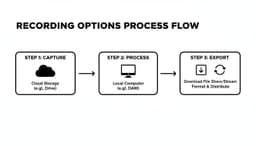
Recording a Webex meeting is incredibly simple. As the host, all you have to do is find the Record button in your meeting controls, click it, and decide whether to save the recording to the cloud or your own computer. That one click turns a fleeting conversation into a permanent, valuable asset for your entire team.
Why Recording Webex Meetings Is a Smart Move
Before we jump into the "how-to," let's talk about the "why." Recording meetings is much more than just creating an archive of old conversations. It's a strategic move that can seriously boost your team's productivity and ability to share knowledge, especially if you're spread out across different offices or time zones.
Think of it this way: you're creating a reusable resource from a single, one-time event.

Turning Conversations into Assets
Every meeting you record becomes a tangible piece of content that can be used again and again. This saves a ton of time and makes sure no important details slip through the cracks. For example, a sales team could review recordings of client calls to pick apart what worked, fine-tune their pitch, and share winning tactics. Or, an HR department could record a live onboarding session once and turn it into the go-to training video for every new hire from then on.
This approach builds a living, breathing knowledge base that helps everyone:
- Catching Up Team Members: Anyone who couldn't make the live meeting—whether they were sick, double-booked, or in a different time zone—can get the full picture without missing a beat.
- Reviewing Key Details: Participants can go back to specific moments in the discussion to double-check action items, confirm a decision, or just get a refresher on complex information without having to rely on memory.
- Onboarding and Training: Recordings of things like product demos, strategy deep dives, and regular team syncs become fantastic training tools for new folks joining the team.
Fueling Modern Workflows
These recordings aren't just for watching later; they're the raw material for some really powerful productivity tools. They are perfect for feeding into AI summarization and transcription services, which can take an hour-long call and boil it down to the most important takeaways and action items in just a few minutes. For project managers trying to keep track of deliverables or team leads needing a quick summary of several discussions, this is an absolute game-changer.
This frees up your team to focus on the work that really matters instead of getting bogged down in administrative chores. Just remember, before you hit that record button, it's crucial to understand the rules. You can learn more about the legal considerations when recording meetings to make sure your team is always following best practices.
Ultimately, knowing how to record a Webex meeting isn't just a technical skill—it's about unlocking your team's collective knowledge and making it work for you.
Getting Your Webex Account Ready to Record
So, you're ready to capture that critical brainstorming session or team debrief. But before you can hit record, you need to make sure your Webex account is actually set up for it. The button itself is simple, but it won't even show up if the right permissions aren't enabled on the back end.
Think of it as a pre-flight check. The ability to record in Webex isn't universal; it's a permission controlled by your organization's Webex site administrator. If the feature is turned off at the site level, nobody can record, period. This is a common security and data management practice, especially in bigger companies.
Who's in Charge? Understanding Roles and Permissions
Your role in a specific meeting is the next piece of the puzzle. Webex is pretty clear about who gets to press the record button, and it's usually the person running the show.
Here’s a quick breakdown of how it works:
- Host: This is the person who organized the meeting. As the host, you almost always have the power to start and stop recordings, as long as your admin has given you the green light.
- Co-host: When a host promotes a participant to co-host, they get many of the same powers, including the ability to record. This is a lifesaver in large meetings where the main host needs a hand.
- Attendee: If you’re a standard participant, you won't be able to record on your own. The record button simply won't be there for you.
If you’re an attendee and absolutely need a recording, your only move is to ask the host. They can either start the recording themselves or promote you to a co-host so you can do it.
How to Get Recording Permissions Turned On
For the IT admins and team leads out there, all of this is managed in the Webex Control Hub. This is the command center where you control user settings, site-wide features, and security policies for the whole organization.
To switch on recording, an admin just needs to pop into the user management section. From there, they can pick a user (or a whole group) and adjust their meeting settings to allow for cloud or local recordings. This can be set as the default for everyone or managed on a person-by-person basis.
Checking these permissions before your meeting starts can save you from that moment of panic when you realize the record button is missing right as your most important client is joining. A quick check ensures you're always ready to go.
Choosing Where to Save Your Recording: Cloud vs. Local
When you hit the record button in Webex, you have an important decision to make: where does the recording go? You can either save it directly to the Webex cloud or download it right onto your computer.
This choice isn't just a minor technicality. It has a real impact on how you share the file, what format it’s in, and how you access it later. Let’s break down the pros and cons of each so you can pick the right one for your needs.
Webex Cloud Recording: The Easy-Share Option
For most people, saving to the cloud is the most straightforward path. Webex saves the file in its own NWR (Network-Based Recording) format on its servers, which comes with some handy perks for teams that are spread out.
- Sharing is a breeze. Just grab the link and send it off. No more wrestling with massive files that clog up email inboxes.
- Automatic transcripts are a game-changer. The cloud can automatically generate a transcript, which saves a ton of time if you need to pull out key details or prep the meeting for an AI summary.
- Playback is built-in. Anyone with the link can stream the recording in their browser on any device—no special software needed.
Before you can even record, you need the right permissions. This flowchart quickly shows who gets to hit the record button.
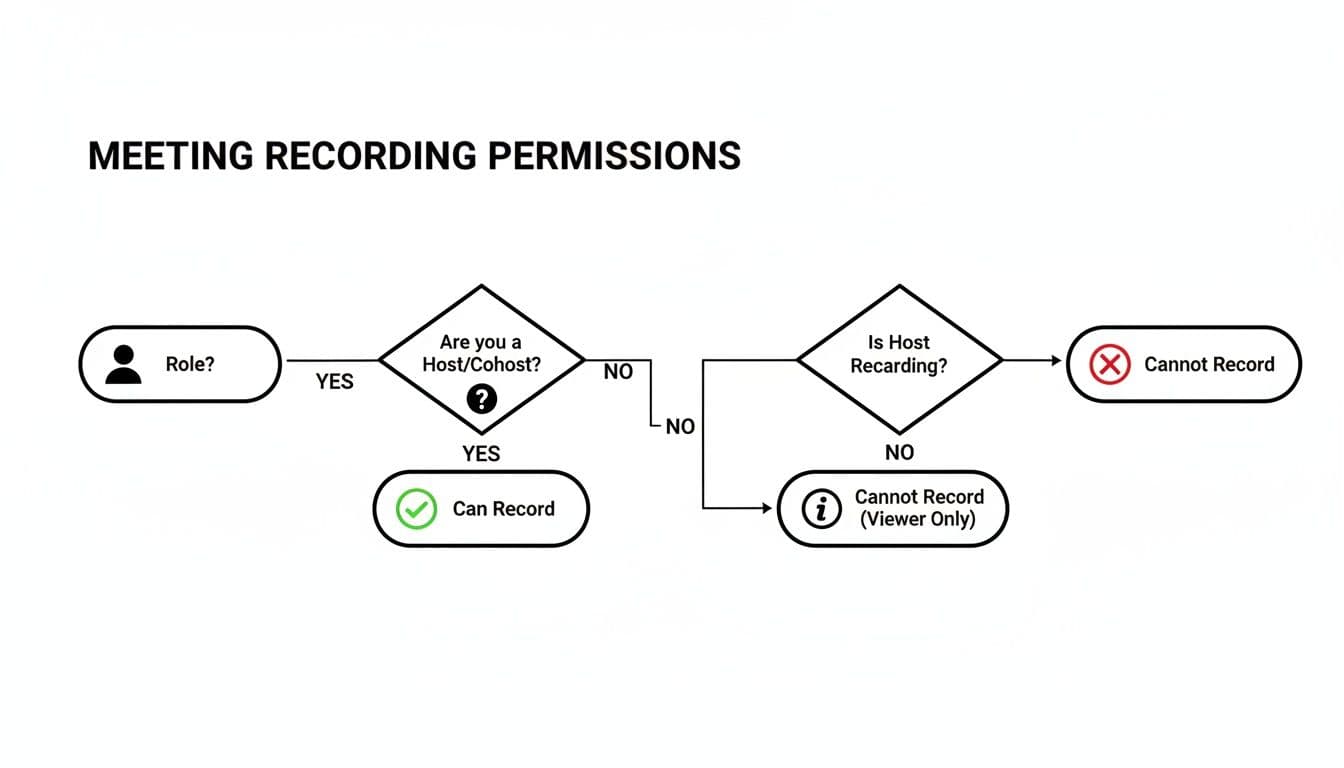
As you can see, only hosts and cohosts have the power to record. Attendees can’t start one on their own.
Local MP4 Recordings: Maximum Control
On the flip side, saving a recording locally means the file lands directly on your computer's hard drive as a standard MP4 file. This is the best option when you need full control over the video itself. If you're planning to edit the footage in a video editor, splice it with other clips, or upload it to a platform like YouTube, you'll want that raw MP4.
Go with a local recording when:
- You absolutely need to access the file offline, without an internet connection.
- Your company has strict rules about where data can be stored, requiring files to stay on internal servers.
- You’re trying to avoid cloud storage limits or potential costs from saving a large library of recordings.
The best choice really boils down to your end goal. For fast sharing and built-in features, the cloud is your friend. For total control, editing, and offline access, local is the way to go.
Cloud Recording vs. Local Recording: A Quick Comparison
Deciding between cloud and local storage can be tricky. This table lays out the key differences to help you choose the best option for your specific situation.
| Feature | Cloud Recording (NWR) | Local Recording (MP4) |
|---|---|---|
| File Format | NWR (Network-Based Recording) | MP4 |
| Sharing | Easy via a shareable link | Requires uploading/transferring the large MP4 file |
| Accessibility | Online, streamable from any device | Offline, but requires the file and a media player |
| Transcription | Automatic transcription available | Requires a third-party tool to create a transcript |
| Storage | Uses your organization's Webex cloud storage | Uses your computer's local hard drive space |
| Editing | Limited; requires downloading and converting first | Easy; MP4 is a standard format for all video editors |
| Best For | Quick sharing, meeting recaps, remote teams | Video editing, content creation, long-term archiving |
Ultimately, understanding these trade-offs ensures your recorded meetings are useful and accessible long after they’re over.
For large companies, keeping track of all these recordings is a must for compliance and resource planning. Site admins can run detailed Recording Usage Reports to see everything from file names and sizes to who recorded them and when. This is critical for organizations like T-Mobile and Cigna Health, which rely on Webex for secure communication. These insights help them analyze meeting trends and make smart decisions about their tech stack. To dig deeper, check out the analytics available for your collaboration portfolio.
How to Record a Webex Meeting on Any Device
Alright, now that we've covered the essentials of permissions and where your recordings live, let's get down to the practical side of things. Knowing how to record a meeting on Webex is easy once you know where to look, but the exact process changes a bit depending on whether you’re on your computer, in a browser, or on your phone.
The main action is always the same: find the Record button and click it. Simple enough, right? But the interface and the options you get can differ across the desktop, web, and mobile versions. Let's walk through each scenario so you're ready no matter how you join.
Recording on the Webex Desktop App for Windows and Mac
If you're hosting from your main workstation, the desktop app is your best bet. It gives you the most control and is the only version that lets you choose between cloud and local recordings (assuming your admin has enabled both).
Once your meeting is underway, just glance down at the control bar at the bottom of the window. You're looking for the circular Record icon.

Starting the recording is a quick, three-click process:
- First, click the main Record button in your control panel.
- A small pop-up will then ask where you want to save it. You’ll see two options: In the cloud or On my computer.
- After you choose, click the red Record button in that pop-up to get things rolling.
You'll immediately see a red "Recording" indicator appear, which is great because it lets everyone in the meeting know the session is being captured. When it's time to wrap up, just hit the Stop button.
Using the Webex Web App in Your Browser
Joined a meeting using Chrome or Firefox? The experience is almost identical to the desktop app.
The one major difference is that the browser version is a one-trick pony: it only supports cloud recording. This actually simplifies things. You find the Record button in the same spot on the bottom control bar, but when you click it, the recording starts immediately, saving straight to the cloud. No pop-ups, no extra decisions.
Capturing Meetings on the Webex Mobile App for iOS and Android
Recording from your phone or tablet is a lifesaver when you're away from your desk. The Webex mobile app for both iOS and Android fully supports cloud recording, so you never have to miss capturing a key conversation.
The steps are a little different to accommodate the smaller screen:
- Tap the More options button, which looks like three dots (...).
- A menu will pop up. Just select Record from the list.
- The recording starts instantly and saves directly to your Webex cloud account.
Just like the browser version, mobile recording is cloud-only. You won’t be saving a huge video file directly to your phone. This is a smart design choice to avoid eating up your device's storage and processing power.
Keep in mind that a stable internet connection is crucial for a clean recording. If you find your connection is spotty, it's worth taking steps to prevent wireless network disconnections that could interrupt your meeting. And if you're evaluating different platforms, our guide on the best meeting recording software options for 2025 can offer some valuable perspective.
Managing and Sharing Your Webex Recordings
Once you’ve hit the stop button, the real work begins: turning that recording into something useful. What you do next depends entirely on whether you saved the file to the cloud or locally on your machine.
If you recorded locally, your life is pretty simple. The file, an MP4, lands directly on your computer. Windows users will typically find it in their "Documents" folder, while Mac users should check their "Home" folder. From there, it’s just another video file you can edit, upload, or share as you see fit.
Locating and Handling Cloud Recordings
Cloud recordings are a different beast, managed entirely through your Webex portal. As soon as the recording is done processing—which can take a few minutes or a couple of hours for those marathon sessions—you'll get an email with a link.
To find your complete recording library:
- Log in to your Webex site.
- Head over to the Recordings tab in the left-hand menu.
- Voila! A list of all your cloud recordings will be waiting for you.
Think of this dashboard as your command center. Understanding how Webex handles these files compared to the general call recording features available on other platforms can give you a better grasp on managing them effectively.
Securely Sharing with Your Team
Sharing a cloud recording is as easy as sending a link, but Webex gives you some serious control over who gets to watch it. Next to each recording, you'll see a share button that opens up a menu of permission settings.
You can keep it internal by requiring viewers to sign in, or you can make it public. For sensitive conversations, I always recommend using the password-protect option. It's perfect for client calls or confidential strategy meetings, ensuring that only the right people can view it, even if the link gets forwarded by mistake.
This is also where you can download the MP4 file to your computer, generate a transcript, or delete old recordings to clear out some storage. When managed well, this library becomes a secure, searchable knowledge base for your whole team. If you want to get more out of these recordings, exploring the best meeting transcription software can help you pull even deeper insights from your conversations.
Common Questions About Recording Webex Meetings
Even with the right permissions in place, you're bound to run into a few quirks when you start recording your Webex meetings. From disappearing buttons to strange file formats, let's walk through some of the most common issues people face.
Why Can’t I Find the Record Button?
This is, without a doubt, the number one question I get. If you're looking for the record button and it's just not there, it's almost always one of two things: your role in the meeting or the settings on your account.
- You're an attendee. Simple as that. Only the meeting host or a cohost has the power to start a recording. If you're the one who needs to capture the session, you'll have to ask the host to either hit record for you or grant you cohost privileges.
- Your account has recording disabled. Sometimes, the feature is turned off at a higher level. Your site administrator might have disabled recording for your specific user type or for the entire organization. A quick message to your IT team should clear this up pretty fast.