Before you even think about hitting record on a FaceTime call, there's a huge step you can't skip: getting clear consent from everyone involved. This isn't just a friendly suggestion—it’s an ethical line in the sand and, in many places, a legal requirement.
While a Mac gives you a pretty straightforward path to capturing both video and audio, recording on an iPhone is a whole different ballgame because of Apple's hardwired privacy features.
What You Need to Know Before You Hit Record

Let's break down two critical things before we get into the step-by-step guides: the legal side of things and the tech behind FaceTime's recording roadblocks. Getting a handle on these will help you record responsibly and avoid any nasty surprises.
The Importance of Consent
Honestly, the most crucial part of this whole process is getting explicit permission from every single person on the call. The laws around recording conversations, often called "wiretapping laws," are all over the map.
Some states operate under "one-party consent," meaning you're in the clear as long as you're part of the conversation. But many others require "two-party" or "all-party" consent, where every single person needs to agree to be recorded.
Since you could be calling people in different states or even countries, the smartest and safest bet is to always act like you need everyone's permission. It’s just good practice.
Just asking that simple question builds trust and covers you legally. Thinking about https://summarizemeeting.com/faq/security-privacy-compliance from the get-go is key, especially when you're dealing with recordings that could contain sensitive info.
Why Apple Makes It Difficult on iPhone
Ever notice there's no big red "Record" button in the FaceTime app? That's by design. It all comes back to Apple's intense focus on user privacy. They’ve built their software to actively prevent people from secretly recording conversations.
This is exactly why the built-in iOS screen recorder intentionally mutes the microphone the moment you start a FaceTime call. It's a feature, not a glitch.
Apple’s goal is to protect you from having your chats recorded without you knowing. This privacy-first thinking is the reason recording a FaceTime call is so different depending on your device:
- On a Mac: You get more control. Tools like QuickTime can easily grab the system audio, making the whole process simple.
- On an iPhone: The system is much more locked down. You're forced to use workarounds that, frankly, usually give you poor audio quality.
Knowing this helps set your expectations. It's possible to record on an iPhone, but it’s often a clunky experience, and the final product is rarely as good as what you'd get from a Mac.
The Best Way to Record FaceTime Calls on a Mac
When you absolutely need a high-quality recording of a FaceTime call, your Mac is the best tool for the job. Hands down. Forget the awkward workarounds and audio issues you run into on an iPhone; recording on a Mac is surprisingly straightforward and delivers a much cleaner result.
The secret weapon here is an app you already have: QuickTime Player. Most people think of it as just a video player, but it has some powerful recording features baked right in. This is the method I always recommend because it hooks directly into your Mac’s system audio, giving you a stable, high-fidelity recording every time.
Firing Up QuickTime for Your Recording
First things first, you'll need to open QuickTime Player. You can find it in your Applications folder or just search for it with Spotlight. Once it's running, look up at the menu bar at the very top of your screen, click File, and then choose New Screen Recording.
For those who love keyboard shortcuts, you can also just press Command + Shift + 5.
Either way, you'll see a small control panel pop up at the bottom of your screen. This is your command center for capturing anything and everything on your Mac. Getting familiar with these options is the key to a perfect recording.
Here's what that control bar looks like—simple, but powerful.
This little toolbar gives you total control over what you capture, whether it's your entire screen or just a tiny piece of it.
Nailing Your Audio and Video Settings
This is the most important step, so pay close attention. In that control panel, click on the Options menu. You’ll see a section for "Microphone." To capture both your voice and the audio from the other person on the call, you have to select Internal Microphone. This tells QuickTime to record all the sound your computer is processing—both your voice going in and their voice coming out.
Next, you have to decide what to record on the screen. You've got two main options:
- Record Entire Screen: This captures everything in sight. It’s the easiest option, but it also means any personal files on your desktop or other open windows will be in the video.
- Record Selected Portion: This is the one I almost always use. It lets you draw a precise box around the FaceTime window, which keeps the rest of your desktop private and focuses the video on the conversation.
With your audio source and recording area set, just click the Record button and make your FaceTime call. When you’re all done, click the little stop icon that appears in the top menu bar. QuickTime will immediately pop open a new window with your video file, ready to be saved.
This Mac method really is in a league of its own for quality and simplicity. It's so reliable, people use it for everything from quick family chats to incredibly long video calls. Believe it or not, some FaceTime calls have gone on for days—the longest officially verified one clocked in at nearly 139 hours. You can actually read about the history of these marathon video calls over on Remote.Tools.
Recording FaceTime on an iPhone or iPad
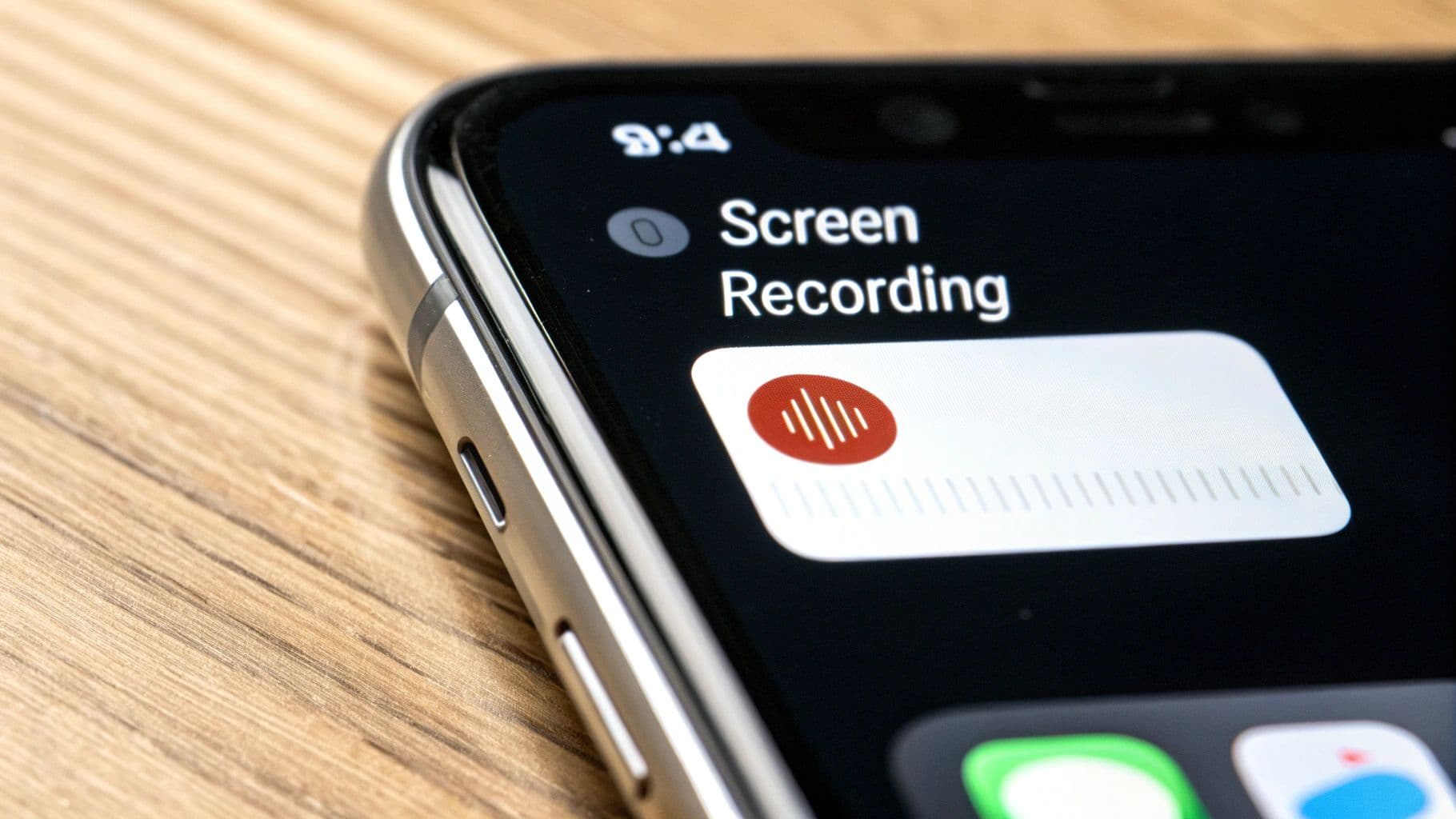
You’d think recording a FaceTime call on your iPhone or iPad would be straightforward, but there’s a major catch. Apple’s deep commitment to privacy means the built-in screen recorder is designed to not capture any audio during a FaceTime call. This isn't a bug; it's an intentional feature to make sure conversations aren't recorded without everyone knowing.
So, while you can easily record the video of your chat, getting the sound requires a specific—and frankly, clunky—workaround. It’s a last-resort solution if you don't have a Mac handy, but be prepared for less-than-perfect audio.
Getting the Screen Recorder Ready
First things first, let's make sure the Screen Recording button is even in your Control Center. If you haven't used it before, it probably isn't enabled by default.
It only takes a moment to add it:
- Head over to the Settings app on your iPhone or iPad.
- Tap on Control Center.
- Scroll down until you see "More Controls" and find Screen Recording.
- Just tap the little green plus icon next to it.
Now, when you swipe down from the top-right corner of your screen, you'll see a new icon: a circle within a circle. That’s your go-to button for recording.
The Only Way to Capture Audio
This is where the trick comes in. To get any sound at all, you have to use your device's physical microphone to pick up the audio from the speaker. It takes two crucial steps, and you have to do them before you start the call.
First, pull down your Control Center. Don't just tap the Screen Recording button—press and hold it. A new menu will pop up with a microphone icon at the bottom. Tap that icon so it turns red and reads "Microphone On."
Second, your FaceTime call audio must be playing through your iPhone's speaker. This method is a complete non-starter if you’re using AirPods or any other headphones, because your mic needs to literally "hear" the sound coming out of the speakers to record it.
This workaround really highlights how much our communication has changed. We're used to pristine digital sound, but sometimes we have to fall back on older, simpler methods. Back in 2012, two Harvard students actually set a Guinness World Record for the longest phone call, which lasted over 46 hours. It was a massive feat of endurance that set the stage for the video call marathons we see today. You can learn more about this historical communication feat and how it compares to our modern habits.
At the end of the day, using your iPhone to record is a compromise. You'll get a video with sound you can hear, but it won’t be clean. If the conversation is important or you're creating content, grabbing your Mac is by far the better option.
Advanced Recording Methods for Pro Results
Sometimes, the built-in screen recorder just isn't enough. If you’re recording a podcast, conducting an important interview, or creating any kind of professional content, you'll want crystal-clear audio and more control. Let's look at a few more advanced techniques that can seriously elevate your results.
Using a Virtual Audio Driver on Mac
For Mac users, the secret to perfect audio is something called a virtual audio driver. It’s like a digital patch cable for the sound inside your computer. My go-to recommendation here is BlackHole, a fantastic—and completely free—tool that does this job perfectly.
After you install it, BlackHole shows up as a new audio input and output device in your Mac’s settings. This lets you route your Mac’s system audio (which includes your FaceTime call) straight into QuickTime or a more powerful recording program like OBS. The result? A perfect capture of both sides of the conversation, with no echo or annoying background noise. It's a clean, direct feed.
Getting High-Quality iPhone Recordings with a Mac
What if the call is on your iPhone, but you have a Mac handy? You're in a great spot. You can completely bypass the iPhone's frustrating audio recording limitations by simply connecting it to your Mac with a Lightning cable.
This simple trick allows you to mirror your iPhone's screen directly on your Mac. Once it’s mirrored, just open QuickTime and select your iPhone as the video source. This will record your iPhone’s screen and capture pristine audio from the call, completely avoiding that tinny speakerphone sound. For iPhone users who need high quality, this is an absolute game-changer.
Exploring Powerful Third-Party Apps
If you're a content creator who needs robust editing features baked right in, then dedicated third-party apps are your best bet. Tools like ScreenFlow or Capto are built from the ground up for high-quality screen recording and come loaded with professional-grade features.
These aren't just simple recorders; they're full-fledged production studios. With them, you can typically:
- Edit audio on multiple tracks to balance voices and clean up mistakes.
- Add advanced video effects like zooms, callouts, and annotations.
- Export your final video in formats optimized for YouTube, Vimeo, and other platforms.
These tools do come at a cost, but for anyone producing polished content, the investment is often well worth it.
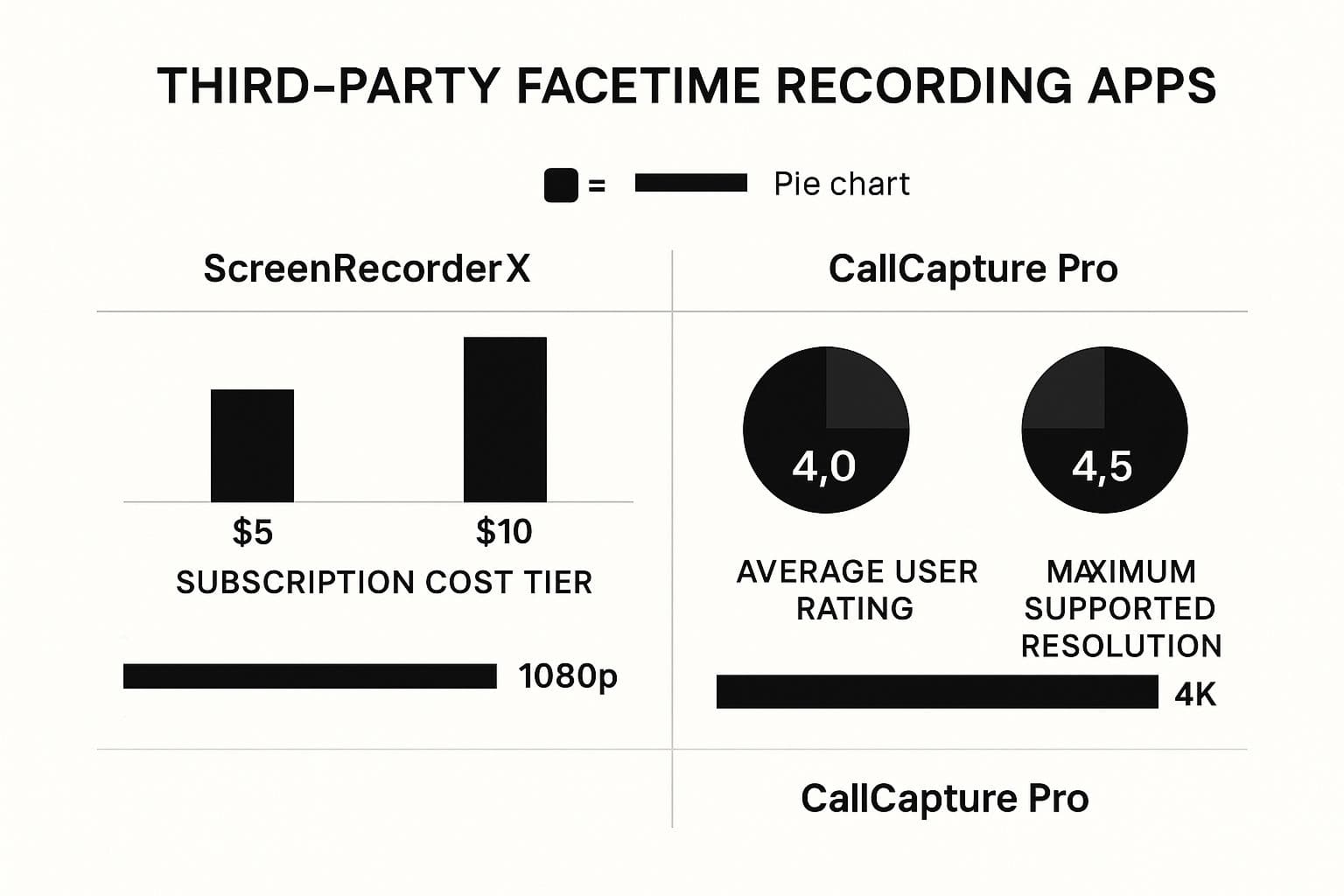
Many of these specialized apps also offer transcription services, which can be a huge time-saver for pulling quotes or creating notes. For anyone serious about content, looking into tools for AI-powered meeting transcription can dramatically streamline your entire post-production workflow.
FaceTime's versatility goes far beyond just friendly chats. Believe it or not, one man in the UK once stayed on a 20-hour FaceTime call with his internet provider just to get a refund. It’s a wild story, but it shows how video calls have become central to everything from social life to consumer battles.
FaceTime Recording Method Comparison
To help you decide which approach is right for you, here’s a quick breakdown of the methods we've covered.
| Method | Device | Audio Quality | Ease of Use | Best For |
|---|---|---|---|---|
| Built-in Screen Recorder | iPhone/iPad/Mac | Fair to Poor (Mic only) | Very Easy | Quick, casual recordings where audio quality isn't critical. |
| iPhone + Mac (QuickTime) | iPhone & Mac | Excellent | Moderate | iPhone users who need high-quality audio and video without extra software. |
| Mac + Virtual Audio Driver | Mac | Excellent | Moderate to Advanced | Podcasters, interviewers, and anyone on a Mac needing perfect audio capture. |
| Third-Party Apps | Mac | Excellent | Moderate | Content creators who need advanced recording and editing features in one package. |
Each method has its place. Your choice really depends on the gear you have and the quality you're aiming for.
Troubleshooting Common Recording Problems
Even when you think you've got everything set up perfectly, technology can throw you a curveball. Hitting "stop" on your recording only to find it has no sound or looks like a choppy slideshow is maddening.
Don't worry, though. Most of these recording snags are surprisingly common and usually have a simple fix. Let's walk through the top issues I've seen and how to sort them out.
Fixing No Sound in Your Recording
The number one complaint I hear is a recording with beautiful video but dead silence. It’s a classic problem, and the solution is often just a single missed click.
If you're using QuickTime on your Mac, the culprit is almost always the audio input setting. When you start a new screen recording, you have to click the "Options" menu and specifically choose "Internal Microphone." If you skip this, QuickTime defaults to "None," leaving you with a silent movie. I've made this mistake myself when rushing to start a call.
For iPhone and iPad users, the "no audio" problem is a bit different because of Apple's built-in restrictions. You can't just hit record and expect sound. You need to enable the microphone manually every single time.
- Swipe down to open your Control Center and long-press the screen record icon.
- In the pop-up menu, tap the Microphone icon until it turns red and reads "Microphone On."
- Make sure your FaceTime audio is playing through the phone's speaker, not your AirPods or any other headphones.
This is the only way to capture audio natively on an iPhone. Forgetting even one of these steps will leave you with a video that's all show and no tell.
Solving Choppy Video and Performance Lag
What if the sound is fine but the video stutters and lags? This is a classic sign that your device is overwhelmed. Running a FaceTime call while simultaneously recording your screen is a heavy lift for any computer or phone.
The easiest fix is to close everything you don't absolutely need. Every open browser tab, messaging app, and background utility is sipping away at your device's processing power. Shutting them down frees up those resources, which can make a world of difference for a smooth recording.
Also, take a quick look at your storage. High-quality video files are huge, and if your hard drive or phone storage is nearly full, your device will struggle to write the new file. As a rule of thumb, I try to have at least 10-15 GB of free space before I record a FaceTime call. It’s a simple check that can prevent a corrupted file and a lot of frustration.
Got Questions About Recording FaceTime? Let's Clear Things Up.
Recording a FaceTime call can feel a bit tricky, and you’ve probably got some questions about the rules, privacy, and the best way to actually get it done. It's smart to get the facts straight before you hit record.
Let's dive into the most common questions people ask.
Is It Actually Legal to Record a FaceTime Call?
This is the big one, and the answer is: it depends entirely on where you live. Call recording laws, often called "wiretapping" or "eavesdropping" laws, are all over the map. Some places just need one-party consent, which means if you're on the call, you can record it legally.
But many other states and countries require two-party or even all-party consent. This means every single person on the call needs to agree to being recorded. Since you can't always know the local laws for everyone in the chat, the best-practice—and most ethical—approach is simple: always ask for permission.
Just saying, "Hey, mind if I record this for my notes?" is enough. It keeps you on the right side of the law and shows respect for everyone's privacy.