Ever finish a great meeting and wish you could hit rewind? We've all been there.
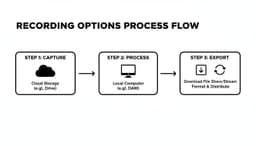
Fortunately, recording a Zoom meeting is pretty straightforward. If you're the host, it's as simple as hitting the 'Record' button at the bottom of your screen. You'll get a choice: save the file right to your computer (local recording) or send it to the Zoom cloud.
For participants, it's a different story. You'll need to get permission from the host first. Once they grant it, you'll see the record button appear. This simple function has become an absolute cornerstone of how modern teams work together.
Why Recording Zoom Meetings Is a Game Changer
Recording meetings isn't just a "nice-to-have" feature anymore; it's a standard business practice. It's more than just archiving—it’s a powerful tool for boosting productivity, creating training materials, and making sure no brilliant idea gets lost in the shuffle. When a key team member can't make the live call, a recording brings them up to speed with all the crucial context.
This has become more important than ever. Zoom's explosive growth led to over 3.3 trillion annual meeting minutes worldwide. With the average meeting running about 52 minutes and a whopping 89% of usage being for business, it's clear why. Recording has become essential for everything from compliance and training to simply reviewing important discussions across its 504,900 business customers. You can explore more data on video conferencing trends to see just how much these tools are shaping the way we work.
Key Benefits of Recording Your Meetings
Beyond just having a backup, recording your meetings unlocks some seriously practical advantages that can immediately improve your team's workflow. Think of it as turning a one-time conversation into a lasting asset.
- Asynchronous Collaboration: Recordings are a lifesaver for teams spread across different time zones. Everyone can stay aligned without having to be in every live session. They can catch up on discussions, understand the decisions, and contribute when they're back online.
- Enhanced Training and Onboarding: Imagine having a library of recorded training sessions, product demos, or client kickoffs. It creates a consistent, scalable resource for getting new hires up to speed quickly and effectively.
- Improved Accuracy and Accountability: Ever try to remember a specific detail, date, or commitment from a past meeting? A recording is your single source of truth, cutting through any "he-said, she-said" confusion.
- Content Repurposing: That one webinar or expert interview you hosted? It can be sliced and diced into blog posts, social media clips, or internal knowledge base articles, getting way more mileage out of the original event.
Understanding why you're recording helps you get the most out of the how. Before we get into the step-by-step, you need to know your options. The two main ways to record in Zoom are local recording and cloud recording, and they each have their own pros and cons. Your choice will really depend on your account type, how much storage you need, and what you plan to do with the video later on.
How Hosts Can Record a Zoom Meeting
As the host, you're in the driver's seat. You have complete control over recording the meeting, and that power starts well before anyone even joins the call. A few minutes spent in your settings beforehand can save you a massive headache later and ensure you capture exactly what you need.
First things first, you have to make sure the recording feature is even turned on for your account. It's a simple, one-time setup that acts as the master switch, giving you the ability to record when you're live.
Enabling Recording in Your Account Settings
You won’t find this option in the desktop app. To activate recording, you need to log into your account on the Zoom web portal using a browser.
Once you’re signed in, look for the Settings section in the menu on the left, then click into the Recording tab. You'll see two key options: Local recording and Cloud recording. Go ahead and flip the switch for one or both, depending on what your plan allows and what you need.
A real game-changer here is the Automatic recording setting. If you're running critical meetings you can't afford to forget—like a client kickoff or a compliance session—you can set Zoom to start recording the second the meeting begins. It's a fantastic safety net.
With your settings ready to go, you can jump into your meeting and start recording with confidence.
Starting the Recording in a Live Meeting
Alright, your meeting is live. Take a look at the control bar at the bottom of the Zoom window and you'll see a Record button. If it's not immediately visible, it might be hiding under the More menu, which looks like three dots (...).
Click it. If you enabled both recording types in your settings, Zoom will ask you where you want to save it:
- Record on this Computer: This saves the meeting files directly onto your hard drive. It’s available on both free and paid plans.
- Record to the Cloud: This saves the recording to your online Zoom account. You'll need a paid subscription for this one.
Once you've made your choice, the recording starts instantly. You’ll see a small red light and a "Recording..." indicator pop up in the top-left corner. This is visible to everyone, so there's no mystery about the meeting being recorded.
Managing Your Recording Controls
While the meeting is being recorded, you have a couple of handy controls. You can Pause the recording to skip over a scheduled break or some off-topic chatter, then hit Resume when you're ready to get back to the important stuff. This little trick can save you a ton of editing time later.
When you want to end the recording completely, just click Stop. You can actually stop and restart the recording multiple times in one meeting. Every time you do, Zoom creates a brand-new, separate video file.
This is incredibly useful for long sessions. Imagine you're running a three-hour workshop. You could record the first hour on "Theory," stop it, then start a new recording for "Practical Application." This breaks the content into digestible chunks, making it much easier for people to find exactly what they need later on.
What Happens After the Meeting Ends
The final step is completely automatic. As soon as you click End Meeting, Zoom gets to work.
- For Local Recordings: A small window will appear telling you the recording is "converting." The longer the meeting, the longer this takes. When it's done, a folder will pop right up on your screen containing the MP4 video, M4A audio, and chat text files.
- For Cloud Recordings: You don't have to lift a finger. Zoom handles all the processing on its own servers. A little while later, you’ll get an email letting you know your recording is ready to view, share, or download from the Recordings section of your Zoom web portal. This is a huge benefit, as it doesn't tie up your computer's resources or eat up your hard drive space.
Understanding these options means you can hit record without a second thought and always know exactly where to find your files when the meeting is over.
Recording a Zoom Meeting as a Participant
So, you're not the host, but you absolutely need a copy of the meeting. This happens all the time, especially with jam-packed training sessions or critical client debriefs where every little detail matters. The good news? You can record a Zoom meeting as a participant.
The catch, however, is that it all hinges on getting permission.
Zoom is built with privacy at its core, so you won't even see a record button until the host gives you the green light. Trying to get around this with third-party screen recorders is a bad idea—it can cause technical glitches and, more importantly, it's a major breach of trust that could violate privacy policies. The best way is always the direct way: just ask.
How to Professionally Request Recording Access
Asking for permission doesn't need to be a big deal. The trick is to be polite, clear, and briefly explain why you need to record. My go-to method is sending a private message to the host right in the Zoom chat. It's discreet and doesn't interrupt the meeting for everyone else.
Here are a few ways I’ve seen this phrased effectively:
- For better note-taking: "Hi [Host's Name], this is great info. To make sure I capture all the details accurately, would you mind enabling recording for me?"
- To share with a teammate: "Hi [Host's Name], my colleague [Colleague's Name] couldn't make it today but would really benefit from this. Would it be okay if I recorded the session to share with them?"
- For complex projects: "Hi [Host's Name], this is a very detailed kickoff. Could you please grant me permission to record so our team can refer back to the specific requirements?"
A simple, respectful request like this goes a long way. In most professional settings, hosts are happy to oblige once they know why you're asking.
What Happens When the Host Grants Permission
Once the host gives you the go-ahead, you'll see a notification pop up. Suddenly, the Record button will appear in your control bar at the bottom of the screen. If you don't spot it right away, check under the More menu (the three dots), as it sometimes hides in there.
Go ahead and click Record.
One key difference to know: unlike hosts with paid accounts, participants are almost always limited to a local recording. This just means the video file saves directly onto your computer, not to the Zoom cloud.
Just like the host, you’ll have controls to Pause or Stop the recording whenever you need. This is super handy for skipping over a 10-minute break or an off-topic side conversation.
When the meeting ends, don't worry if the file isn't there immediately. Zoom needs a few minutes to process and convert the video. A small window will appear showing the progress. Once it's done, a folder will automatically open right on your computer. Inside, you'll find your MP4 video file, a separate M4A audio file, and any saved chat logs.
Just a heads-up: make sure you have enough free space on your computer beforehand. High-quality video files can be surprisingly large—a one-hour meeting can easily eat up several hundred megabytes, sometimes even more.
Mastering Zoom Recording Settings and Permissions
If you want to move beyond basic recordings and create a truly polished asset, you’ll need to look past the in-meeting controls. The real power lies in your account settings on the Zoom web portal.
Head over to Settings, then click the Recording tab. This is your command center for customizing everything about your final video, ensuring it captures exactly what you and your audience need.
Customizing Your Cloud Recording Layout
One of the most important decisions you'll make is the video layout. Zoom offers a few different flavors for cloud recordings, and each one serves a unique purpose.
- Active speaker with shared screen: This is my go-to for most situations. It keeps the focus squarely on the presenter while making sure any slides or documents are perfectly clear.
- Gallery view with shared screen: When you want to capture the energy and reactions of the whole team during a presentation, this is the perfect choice. I find it’s especially useful for collaborative workshops or brainstorming sessions.
- Record active speaker, gallery view, and shared screen separately: This is the power-user option. It saves each view as a separate video file, giving you incredible flexibility in post-production. A video editor can then switch between views to create a much more dynamic and engaging final cut.
Think about the goal of your meeting. For a formal webinar, the active speaker view is clean and professional. For a lively team sync, the gallery view preserves that collaborative vibe.
Unlocking Advanced Recording Features
Beyond the layout, the settings page offers some fantastic granular controls that can seriously boost the value of your recording. These are the little details that make a huge difference.
One of my favorite features is the ability to create separate audio files for each participant. For anyone who’s ever tried to edit audio, you know this is an absolute game-changer. If one person has a barking dog in the background, you can simply edit their audio track without ruining the sound for everyone else.
A few other powerful settings I always recommend checking out:
- Add a timestamp to the recording: This is a simple checkbox that overlays the date and time on the video. It can be a lifesaver for compliance or official record-keeping.
- Display participants' names in the recording: This little touch adds a lot of clarity, making sure viewers always know who is speaking.
- Audio transcript: By enabling this, Zoom will automatically transcribe your cloud recording's audio, giving you a searchable text file of the entire conversation.
As this decision tree shows, the process for a participant to record is pretty straightforward.
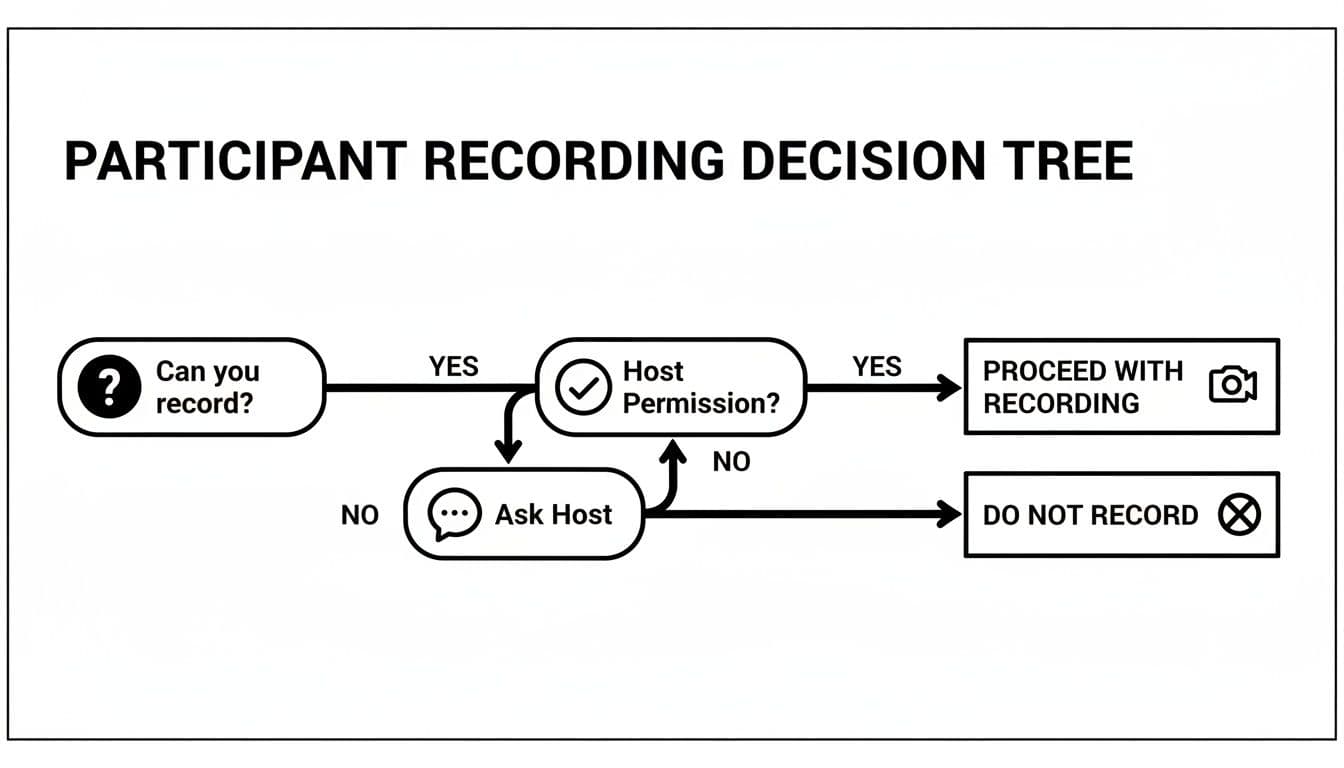
The key takeaway is clear: as a participant, your ability to record hinges entirely on getting permission from the meeting host.
Managing Permissions and Sharing Securely
If you're managing a team account, you get an extra layer of control. From the admin dashboard, you can decide who gets to record. You could disable recording for certain user groups or enforce specific settings across the board, like requiring automatic recording for all meetings hosted by your sales team. This is great for maintaining consistency and compliance.
Once your cloud recording is ready, sharing it is easy, but it pays to be smart about security. When you grab the shareable link, Zoom gives you a few options:
- Set an expiration date: The link will automatically deactivate after a date you choose—perfect for time-sensitive info.
- Require a passcode: Add an extra layer of security by making viewers enter a password to access the recording.
- Allow viewers to download: You can decide whether people can only stream the recording or if they can download the MP4 file to their own computer.
Of course, after a recording is saved, you need to find it. If you're not sure where your files end up, our guide on where Zoom saves recordings can help you track them down on any device. Getting a handle on these settings ensures your valuable meeting content is not only well-produced but also properly protected.
Tips for High-Quality Zoom Recordings
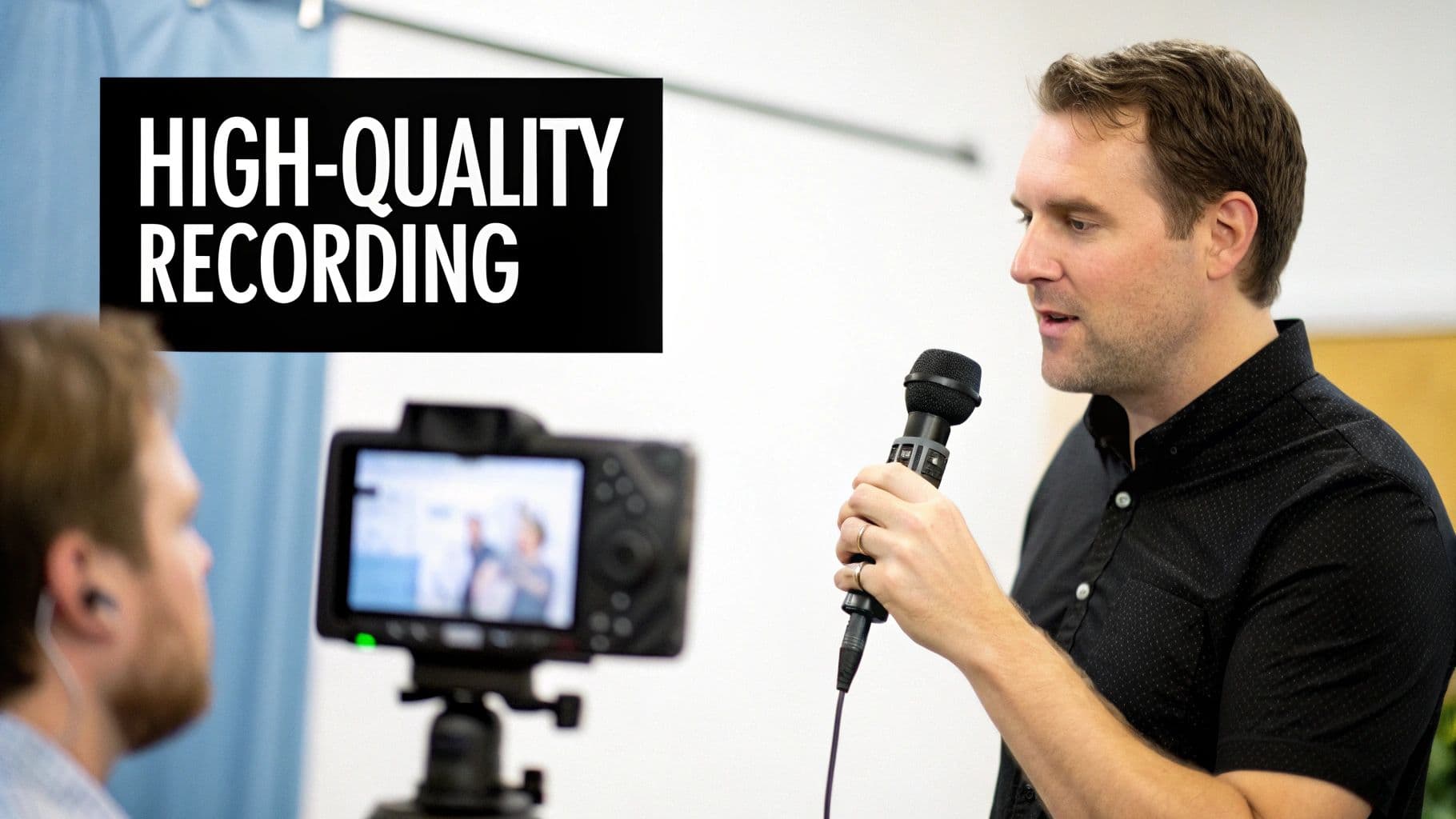
Hitting the record button is easy. But creating a recording that people actually want to watch—one that's clear, professional, and doesn't make them tune out—takes a little more thought. The good news is, a few small tweaks before you go live can make a world of difference.
Think of your recording as a valuable asset. Whether you’re creating it for training, compliance, or just to catch up colleagues who couldn't make it, a polished final product says a lot. Let’s walk through a few practical tips to level up your next recording.
Nail the Audio Quality
Nothing ruins a recording faster than bad audio. If people can't clearly hear what's being said, the video is basically useless. Your laptop's built-in mic might be fine for a quick live chat, but for a recording, it’s a liability. They tend to pick up every keyboard click, fan whir, and echo in the room.
The single biggest upgrade you can make is getting an external microphone.
- USB Microphones: These are my go-to recommendation. They're plug-and-play and offer a massive leap in clarity, isolating your voice and cutting down on distracting background noise.
- Headsets with a Boom Mic: A good headset is also a fantastic option. It keeps the microphone a consistent distance from your mouth, so your volume and clarity stay steady, even if you move around.
If you really want to get serious about sound, it’s worth understanding microphone polar patterns. This will help you pick a mic that’s designed to capture your voice while ignoring other sounds around you.
Optimize Your Video and Lighting
Clear video keeps your audience engaged. It also helps convey all those non-verbal cues that get lost in an audio-only format. You don’t need a Hollywood budget, just a few basics to look your best.
Lighting is everything. The most common mistake I see is people sitting with a bright window behind them, which instantly turns them into a dark silhouette. You want the light source in front of you, not behind. Natural light from a window you're facing is often the most flattering. If that’s not an option, even a simple desk lamp or a ring light will do wonders.