Your Quick Guide to Finding Teams Recordings
We’ve all been there: a crucial meeting ends, and you can't remember where the recording went. Don't worry, you're not alone. Finding your recording is usually simple once you know the secret: its location depends entirely on the type of meeting you just had.
This section is your express lane to finding that video. Before we get into all the technical nitty-gritty, let's solve the immediate problem.
Your recording will almost always be in one of two places: your personal OneDrive account or your team’s SharePoint site. Understanding this one difference is the key to solving most "where did my recording go?" mysteries.
Where Your Teams Recording Is Stored
I've put together this quick-reference table to help you pinpoint exactly where to look based on the meeting you recorded. It's a lifesaver when you're in a hurry.
| Meeting Type | Recording Storage Location | Who Has Access By Default |
|---|---|---|
| Standard Meeting (from your calendar) | Your personal OneDrive "Recordings" folder. | The person who recorded and all internal invitees. |
| Channel Meeting (started in a Team) | The SharePoint site "Recordings" folder for that channel. | All members of that specific Team channel. |
| One-on-One Call | The OneDrive "Recordings" folder of the person who hit record. | Only the participants of the call. |
This little cheat sheet should get you to the right folder fast. Once you know whether to check OneDrive or SharePoint, finding the actual file is a breeze.
Now that you have a map, let's walk through the quickest ways to pull up those recordings directly within the Teams app itself, whether you're on your computer or your phone.
How Recordings Are Stored in OneDrive and SharePoint
Have you ever finished a project meeting and wondered why the recording ended up in a completely different spot than the one from your one-on-one call? It might seem random, but there’s a simple logic behind where Microsoft Teams tucks away your recordings. Once you get it, you'll know exactly where to look every time.
It all boils down to one simple question: Was the meeting part of a specific Team channel?
The answer to that question determines whether the video file lands in your personal OneDrive or a shared SharePoint site. This distinction is more than just a technical detail—it dictates who can see the recording, how it's managed, and where you should start your search.
The OneDrive and SharePoint Divide Explained
Think of it as the difference between personal files and team files. Microsoft automatically treats recordings from private chats or standalone meetings as your personal stuff, while recordings from channel meetings are considered assets that belong to the whole team.
Here's the simple breakdown:
- Standard Meetings Go to OneDrive: If you kick off a meeting from your Outlook or Teams calendar, or just start a group call that isn't connected to a channel, the recording goes into a special "Recordings" folder. This folder lives in the OneDrive for Business account of whoever hit the record button.
- Channel Meetings Go to SharePoint: When a meeting is scheduled or started inside a specific channel—say, the "Q4 Marketing Campaign" channel—the recording is saved to the "Recordings" folder within that channel's SharePoint document library.
This setup makes a lot of sense. It keeps team-related content accessible to everyone on the team by default, while your private meeting recordings stay under your personal control.
Why This Storage System Is a Good Thing
This shift to storing recordings in OneDrive and SharePoint is a huge leap forward from the old Microsoft Stream (Classic) days. Before, all videos were isolated on a separate platform. Now, your Teams recordings are treated just like any other Office file, such as a Word document or an Excel spreadsheet.
This integration is fantastic because it unlocks the full power of the Microsoft 365 ecosystem. You can manage permissions with the same familiar controls, find videos using Microsoft Search, and apply the same governance and retention policies you use for other documents. Our detailed guide on where Teams recordings go dives deeper into this modern storage approach.
You'll see a thumbnail like this pop up in the meeting chat once the recording is ready, giving you and other attendees immediate access.
This direct link in the chat is often the fastest way to get to your recording right after a meeting ends.
Navigating SharePoint for Channel Recordings
When a recording belongs to a channel, it belongs to the team. Finding it is easy because it’s stored in a central, shared spot.
Behind every Team you create, Microsoft automatically sets up a dedicated SharePoint site to store all the team's files. If you're new to this concept, understanding SharePoint Online is a great starting point, as this site is the collaboration hub for the team.
To find a channel recording directly within SharePoint, here’s what you do:
- Head over to the Team and the specific channel where the meeting happened.
- Click on the "Files" tab at the top.
- Inside, you'll find a folder named "Recordings." Just open it up.
- All the meeting recordings for that channel will be right there.
Since the file lives in SharePoint, every member of that Team channel automatically has permission to watch and download the recording. No need to mess around with sharing links—it just works.
However, for IT admins, tracking down recordings across an entire company is a different story. Finding Teams meeting recordings at scale is operationally fragmented; there’s no single dashboard in the Teams Admin Center that conveniently lists every recording made. Admins often have to piece together information from audit logs and file searches to locate recordings scattered across countless OneDrive and SharePoint sites. This reality makes it even more important for users like us to understand the basic storage rules so we can manage our own files effectively.
Where to Find Your Recording: Desktop, Web, and Mobile
No matter where you work—at your desk, in a browser, or on your phone—Microsoft Teams keeps your meeting recordings within reach. But the quickest way to find a recording can change depending on which app you're using. Knowing the little shortcuts for each one will save you from digging around.
The main thing to remember is that the recording is always linked to the meeting's chat history and the original calendar event. The trick is just knowing where to click or tap to get there, no matter which version of Teams you have open.
Finding Recordings on the Teams Desktop Client
Most of us live in the desktop app, and thankfully, it gives you the most direct path to your videos. Right after a meeting wraps up, a link to the recording will pop up directly in the meeting chat. It’s hard to miss.
If you're looking for a recording from an older meeting, you've got a few solid options:
- The Meeting Chat: This is always my first stop. Head over to the Chat pane on the left, find the specific meeting (it will have the same title as the meeting), and just scroll up a bit. You'll see the recording waiting for you as a big, clickable thumbnail.
- The Calendar Event: Jump over to your Calendar in Teams. Find the past meeting, double-click it, and the recording link will be sitting right at the top of the Details tab, along with the chat history.
- A Channel's "Files" Tab: If the meeting happened in a specific channel (say, "Project Alpha"), navigate to that Team and channel. Click the Files tab at the top. You’ll find a folder conveniently named Recordings, and every video from that channel's meetings lives right there.
This flowchart is a great way to visualize where your recording ends up based on the meeting type.
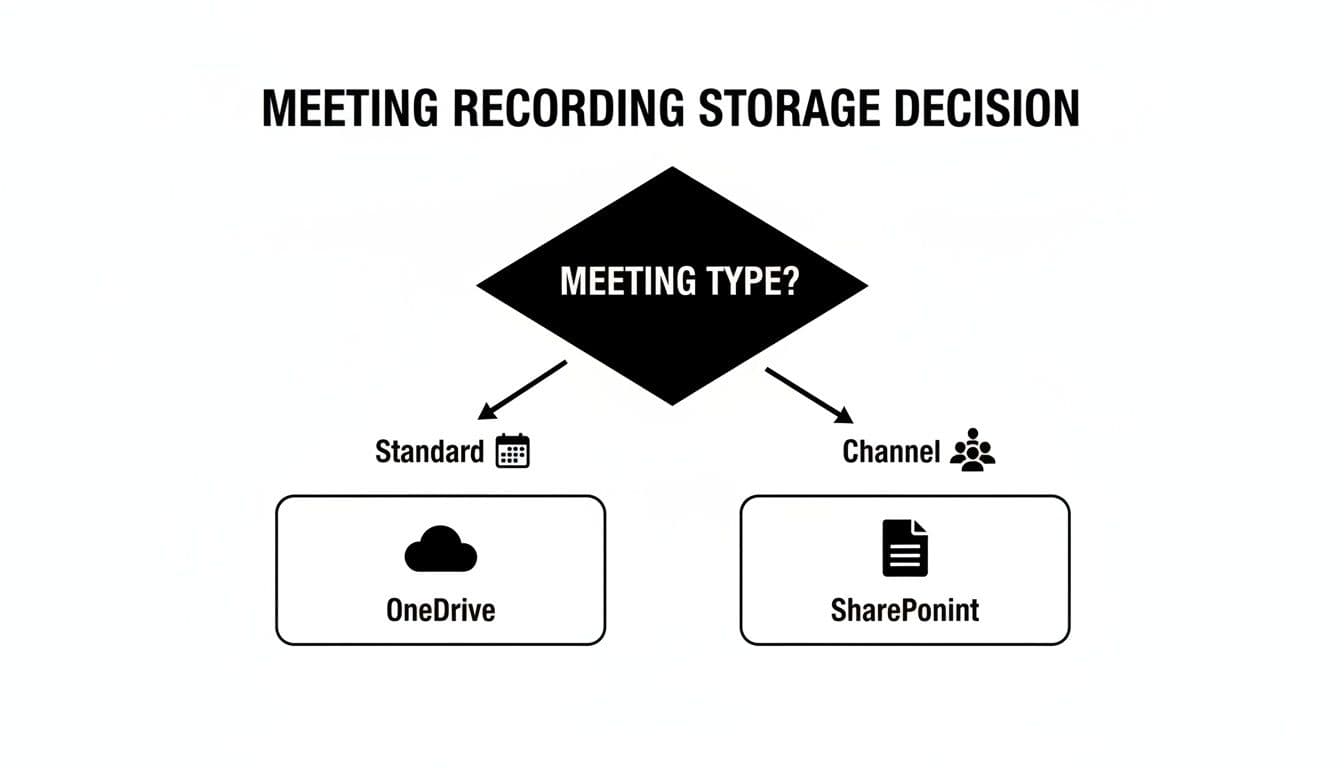
As you can see, it's pretty simple: standard meetings get saved to the recorder's OneDrive, while channel meetings are stored in the team's shared SharePoint site.
Accessing Videos on the Teams Web App
The Teams web app feels almost identical to the desktop client, which is great for consistency. If you're working from a browser, all the same tricks apply. You can check the meeting chat, dig through your calendar, or pop into the Files tab of a channel.
The only real difference is that when you click to play the recording, it will open in a new browser tab—launching directly into Stream, OneDrive, or SharePoint—instead of a separate desktop window. It’s a clean, browser-based workflow that’s perfect if you prefer not to install the full application.
How to Find Teams Recordings on Your Phone
Finding recordings on the go is just as critical, and the Teams mobile app handles it well. Since the layout is built for smaller screens, the navigation is a little different, but still intuitive.
Here’s the simplest way to track down a recording on your phone:
- Open the Teams app and tap the Chat icon in the bottom menu.
- Find the meeting chat in your list of recent conversations and tap on it.
- Scroll up through the chat—you’ll see the recording as a thumbnail you can tap to play immediately.
You can also use the calendar on mobile, which is a lifesaver for finding older recordings. Just tap the Calendar icon, find the day of the meeting, and select the event. The recording will be linked right in the meeting details. This is my go-to method when I know a meeting happened a few weeks ago and don't want to scroll endlessly through my chat feed.
No matter which device you’re on, the meeting chat is the most reliable place to start. It acts as the official log of the event, and Teams automatically posts the recording there as soon as it's processed and ready to watch.
Advanced Search Methods for Admins
As an IT admin, finding a specific Teams recording is rarely about just locating a file. It’s usually tied to a much bigger task, like a compliance review, a legal discovery request, or an internal audit. When you’re responsible for hundreds or even thousands of users, sifting through individual OneDrive or SharePoint sites just isn't an option.
This is where you have to go beyond the user-level tools. The Microsoft 365 ecosystem offers some incredibly powerful features for admins, allowing you to pinpoint recordings based on metadata, user activity, and even file content, regardless of where a file has been moved or what it’s been named. You’re no longer just finding your recording; you’re equipped to find any recording across the entire organization.
Using Audit Logs for Recording Discovery
Your first port of call for tracking down a recording should be the Microsoft Purview compliance portal. The unified audit log here is a true goldmine, capturing a detailed history of user and admin activities across Microsoft 365, including everything that happens to a meeting recording.
Think of it as a forensic tool. The audit log can help you answer critical questions like:
- Who actually hit the record button? Search for the "Started recording" activity to nail down the user who kicked it off.
- Where did the file end up? The log entry usually includes the file path, pointing you straight to its home in OneDrive or SharePoint.
- Who has touched this file since? You can track a recording’s entire lifecycle by looking for "Accessed file" or "Shared file" activities.
A great starting point is to filter the audit log for "file and page activities" and then narrow it down with a keyword like .mp4. This approach is your best bet when all you have to go on is a vague meeting time or one of the participant's names.
Content Search and eDiscovery for Legal Holds
When the stakes are higher—say, for legal or compliance reasons—the standard audit log might not be enough. This is the time to bring out the heavy hitters: Content Search and eDiscovery, both found within Microsoft Purview. These tools are built for comprehensive, tenant-wide searches that are defensible in legal settings.
Content Search lets you run a targeted search across every SharePoint site and OneDrive account in your organization. For instance, you could look for all recordings created by a specific user in the last quarter or any recording with a certain project code in its filename. You can then export the results for review without touching the original files.
For businesses dealing with a massive amount of video content, specialized digital asset management software can offer more advanced features for categorizing, storing, and quickly retrieving recordings beyond what Microsoft’s native tools provide.
The Challenge of Scale and Storage
The sheer volume of data that recordings generate is precisely why these admin tools are so critical. The storage footprint of Teams recordings can be staggering. To put it in perspective, an organization with 1 million active users could generate roughly 8.32 TB of raw recording files every year, and that's based on fairly modest usage. This massive scale makes any manual search process impossible.
It also highlights the need to index recordings with rich metadata—like the organizer, meeting ID, and timestamp—using more automated, programmatic methods.
Automating Discovery with PowerShell and Graph API
When you're operating at scale, clicking through a graphical interface just won't cut it. This is where scripting and automation become your best friends. Both PowerShell and the Microsoft Graph API give you programmatic access to all this data, letting you build custom reports and discovery scripts tailored to your needs.
- PowerShell: You can use cmdlets for SharePoint Online and OneDrive to script a search for all files ending in ".mp4" across every single user site. This is fantastic for creating a complete inventory or finding all recordings tied to a specific project.
- Microsoft Graph API: The Graph API is even more powerful. It’s a unified endpoint for accessing data across all of Microsoft 365. You can use it to query meeting details, locate the associated recording files, and pull metadata that isn't even visible in the user interface. You could even build a custom dashboard to view all recording data across the organization.
While these methods require some technical know-how, they give you unparalleled control. You can build the exact governance and reporting tools your organization needs to get a firm handle on its ever-growing library of Teams recordings.
Troubleshooting Common Recording Problems

We've all been there. You wrap up a big meeting, and someone immediately asks, "Where's the recording?" But when you check the chat, there's nothing there. Or worse, you find the link, click it, and get hit with a frustrating "access denied" message.
It’s easy to think the recording is gone for good, but don’t panic. These issues are incredibly common and almost always fixable once you know where to look. Most of the time, the culprit is a simple processing delay, a permissions hiccup, or an automatic company policy you didn’t even know existed.
Why Is My Recording Missing Entirely?
The most frequent cause of a "missing" recording is simply a delay. When a meeting ends, the video file has to be processed by Microsoft's servers before it can appear. The longer the meeting, the bigger the file, and the more time it takes.
A one-hour meeting can easily take 20-30 minutes or more to process. If it was a multi-hour session, you might need to wait a bit longer. If a few hours pass and it's still MIA, the recording might have failed to save. This can happen if the person recording had a spotty internet connection or left the meeting abruptly before the file could finalize.
Here’s a quick checklist to run through:
- Give It Time: For longer meetings, wait at least an hour before you start to worry.
- Check the Recorder's OneDrive: If it was a standard meeting, the file lives in the "Recordings" folder of whoever hit the record button. Have them check their OneDrive directly.
- Look in the Channel's SharePoint: For channel-based meetings, the recording should be in the channel's "Files" tab, inside a folder named "Recordings."
Solving the "Access Denied" Problem
Getting an "access denied" error is almost always a permissions issue, and it's an easy fix. By default, only internal folks who were on the original meeting invite get automatic viewing rights. If you were an external guest or someone added you to the call after it started, you won't have access.
The solution? Just ask the owner of the recording to share it with you. The owner is the person who initiated the recording, not necessarily the person who organized the meeting. They can find the file in their OneDrive or SharePoint, click the "Share" button, and grant you access directly.