Ever needed to save an important Google Meet call? The good news is, if you have the right Google Workspace plan, there's a record button built right in. But it’s not available for everyone, so let's break down exactly who can use it and how it works.
Why Bother Recording Google Meet Sessions Anyway?

Knowing how to record a Google Meet call is less of a tech trick and more of a superpower for getting things done. Think about it: whether you're leading a project kickoff, walking a client through a new feature, or sitting in a university lecture, a recording means no brilliant idea or critical detail gets lost.
It becomes your team's single source of truth. Anyone who couldn't make the live meeting can catch up on their own schedule, completely in the loop.
For a lot of businesses, recording meetings is just standard procedure. A sales team might re-watch a discovery call to nail down a client's pain points. An HR department can save a benefits overview to reuse for every new hire. Being able to revisit those conversations is a game-changer for clear communication and making sure everyone is on the same page.
Here’s a quick look at what Google’s built-in recorder is all about.
Google Meet Recording Feature At a Glance
| Feature | Details |
|---|---|
| Who Can Record | The meeting organizer or someone in the same organization as the organizer. |
| Google Account Required | You must have a supported Google Workspace or Google One Premium plan. |
| What's Recorded | The active speaker and anything being presented on screen. |
| Other Content Captured | In-meeting chat messages are saved in a separate file. |
| Where It's Saved | Automatically saved to the organizer's "My Drive > Meet Recordings" folder. |
| File Format | Saved as an MP4 video file. |
Basically, it’s a straightforward way for Workspace users to capture what matters most in a meeting.
Beyond Just Keeping a Record
The real magic happens when you start thinking beyond simple record-keeping. That recording can be sliced, diced, and repurposed into all sorts of useful assets.
For instance, that one product demo you recorded can become:
- A go-to training video for new customer support agents.
- A short, punchy clip for your social media channels.
- A valuable resource for your product team to hear user feedback directly.
Suddenly, the time you spent in that one meeting delivers value over and over again.
Ultimately, getting comfortable with recording your meetings helps you build a library of genuinely useful content that can support your entire team long after the call has ended.
Understanding Who Can Record in Google Meet
Before you even start looking for the record button in Google Meet, you need to know if your account actually has the feature. It’s a common point of confusion, but Google’s built-in recording tool isn't available for everyone. It’s a premium feature tied to specific Google Workspace and Google One plans.
So, if you're using a standard, free personal Google account, you simply won't have the option to record. Google reserves this for professional and educational settings, which is why you'll only find it in subscriptions like Business Plus, Enterprise, and Education Plus.
Who Holds the Recording Controls
Even if you’re part of an organization with a qualifying plan, that doesn't mean everyone can hit record. The controls are intentionally limited to just two roles to keep meetings orderly and secure.
- The Meeting Organizer: This is the person who originally created the meeting.
- A Co-host: Someone the organizer has specifically granted co-hosting permissions to.
This setup is practical—it puts the responsibility squarely on the meeting's leaders. If you need to record a session and you’re not the organizer, your only real options are to ask them to start the recording for you or to promote you to a co-host.
The demand for this feature is huge. In the United States alone, Google Meet has over 11,500 paying customers who rely on it for their day-to-day work. It's a clear sign of how essential recording has become in both business and education.
Knowing these rules upfront can save you a lot of time and frustration. If your account doesn't have native recording capabilities, don't worry. There are some fantastic third-party tools that get the job done for everyone, which we'll cover next.
Recording a Session Right Inside Google Meet
If your company uses a qualifying Google Workspace plan, recording a meeting is about as straightforward as it gets. The feature is baked right into the interface, so you don't have to fuss with third-party apps or clunky setups. It's a clean, integrated solution that just works.
When you're ready to roll, just find the Activities icon in your bottom control bar—it’s the one with the triangle, square, and circle. Give that a click, and a menu will pop up with the Record meeting option.
Kicking Off and Ending the Recording
After you hit “Record meeting,” you’ll see a consent pop-up. This is a crucial little step, reminding you that everyone needs to be on board with being recorded. Once you confirm, a bright red "REC" icon appears in the top-left corner, visible to all attendees. It's a great built-in feature for transparency.
Stopping is just as easy. You can head back to the same Activities menu and click "Stop recording." Or, if you’re the last one to leave, Google Meet will automatically end the recording for you. No more accidentally recording an empty room for hours!
What to Expect After You Hit Stop
This is where the magic of Google's ecosystem really kicks in. As soon as you stop the recording, Google handles all the heavy lifting. You don't have to download massive files or wait for things to render.
Here's how the automated process works:
- The video starts processing in the background immediately after the meeting.
- Once it's ready, the MP4 file is automatically dropped into a "Meet Recordings" folder in the meeting organizer's Google Drive.
- An email with a direct link to the recording is sent to both the meeting organizer and whoever started the recording.
This whole workflow saves you a ton of time and hassle. You can move on to your next task without worrying about the logistics. Depending on the length of the meeting, the final video is usually ready for you to share or review within minutes.
Alternative Ways to Record Google Meet Calls
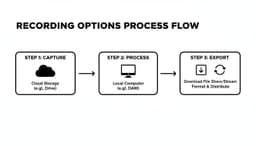
So, what happens if you don't have the right Google Workspace account? Don't worry, you're not out of luck. You can still easily record your Google Meet sessions using a third-party screen recording tool. These apps do exactly what they sound like—they capture everything happening on your screen, making them a fantastic workaround.
You’ll find a ton of different tools out there, from simple browser extensions to full-blown desktop software. A freelancer, for instance, might just need a lightweight extension for quick client calls. But if you're a student trying to capture a three-hour lecture, a dedicated desktop app will give you the stability and control you need.
This infographic breaks down the basic choice you'll face when deciding how to record your meeting.

The bottom line is simple: if Google's built-in recording isn't available to you, a screen recorder is your go-to solution.
Choosing the Right Screen Recorder
When picking a tool, think about what matters most for your situation. Do you need something quick and easy? High video quality? Or specific editing features?
- Browser Extensions: These are the definition of convenience. They live right in your browser and are usually just a click away, which is perfect for those "oh, I should record this" moments.
- Desktop Software: For more power, you'll want a desktop application. These programs are more robust, often delivering better-quality recordings and giving you more options for editing after the meeting ends.
No matter which tool you land on, the basic steps are pretty much the same: fire up the recorder, tell it to capture your Google Meet window (or your whole screen), and hit record. It’s a straightforward method that works for anyone. If you want to dive deeper, we have a complete guide on the best meeting recording software options for 2025.
A Look at Some Popular Screen Recorders
To help you get started, here’s a quick comparison of a few popular tools that work well for recording Google Meet. These are great options if you're on a free Google plan and need a reliable alternative.
Comparing Third-Party Google Meet Recorders
| Tool | Type | Best For | Key Feature |
|---|---|---|---|
| Loom | Desktop App & Extension | Quick async video messages and team updates | Instantly shareable video links |
| Screencast-O-Matic | Desktop App | Educators and students creating tutorials | Built-in video editor with advanced features |
| OBS Studio | Desktop App | Users needing high-quality, custom recordings | Professional-level control and streaming options |
| Screencastify | Browser Extension | Fast, simple screen captures for any user | Direct integration with Google Drive |
Ultimately, the best tool is the one that fits your workflow. A simple extension like Screencastify is fantastic for its speed, while a powerhouse like OBS Studio gives you total control if you're willing to learn its features.
Understanding Video Quality Differences
It's also worth noting that the quality of your recording can differ quite a bit between tools. When you put Google Meet's native recorder up against competitors, some distinctions pop up. For example, Zoom allows recording on its free plan, usually capturing video at 720p with a pretty decent bitrate.
While Google Meet has started rolling out 1080p recording for some plans, its standard 720p recordings can sometimes look less crisp due to a lower bitrate. This is an area where a high-quality third-party recorder can really shine, often giving you a sharper, clearer final video.
Getting the Most Out of Your Recordings

Hitting "record" is easy, but what you do with the video file afterward is what really counts. Without a solid system, your "Meet Recordings" folder in Google Drive can turn into a digital junk drawer filled with files you can't make sense of.
The first thing I always do is rename the file. It's a simple habit that saves a ton of time later. I use a consistent format like YYYY-MM-DD_[Project Name]_[Meeting Topic]. A file named "2024-10-28_ProjectPhoenix_Q4-Kickoff" is instantly searchable and tells me exactly what it is without having to watch it first.
Sharing Securely and Staying Organized
When you go to share a recording, pause and check the permissions in Google Drive. By setting access to “Viewer,” you stop people from downloading or editing it, which is a crucial step if you discussed sensitive information.
Don't let old recordings eat up all your cloud storage, either. I make it a point to go through my folder once a quarter and archive or delete videos that are no longer relevant.
To make your recordings even more powerful, think about getting them transcribed. Having a searchable text version is a game-changer for pulling out key decisions or quotes. There are some great tools out there for this, and you can learn how to transcribe Google Meet with AI.
Got Questions About Recording Google Meet?
Even when you know the steps, a few tricky questions always seem to pop up once you hit that record button. Let's walk through some of the most common ones I hear, so you can handle the details like a pro.
One of the biggest concerns is whether it's even legal to record a meeting. The rules vary quite a bit by location. In many places, you're in the clear as long as one person on the call consents (that's you!). But some states and countries require all participants to agree.
Google Meet's built-in recorder makes this easy by automatically notifying everyone. If you’re using an outside tool, though, the responsibility falls on you. Always give everyone a heads-up before you start.
Recording Limits and Who Gets to Press the Button
A lot of people wonder if they can record with their free, personal Google account. Unfortunately, the answer is no. Native recording is a premium feature, so you'll need a specific Google Workspace subscription like Business Plus, Enterprise, or Education Plus to get it.
So, what if you're the organizer but need someone else to handle the recording? Simple. You just need to make them a co-host.
- Look for the Host controls (it’s the little shield icon).
- Find the "Host management" section and add them as a co-host.
- The record button will immediately appear for them.
Finally, people often ask what actually gets saved. The recording focuses on the active speaker and whatever is being presented. But what about the chat? Google has you covered. All chat messages from the time you were recording are saved in a separate .SBV file, which you’ll find right next to the video in your "Meet Recordings" folder on Google Drive.
Finding the right tool to record and make sense of your meetings can feel overwhelming. Summarize Meeting has a fantastic comparison guide covering over 20 AI meeting summarizers to help you pick the best one for your needs. You can explore all the options and find your perfect fit at https://summarizemeeting.com.