A Zoom meeting transcript is basically a text version of everything that was said during your call. Think of it as your secret weapon for remembering key decisions, action items, and those little details that are easy to forget. It’s how you turn a conversation into something you can actually use later, making sure nothing important slips through the cracks.
Why Transcription Is Your Team's New Superpower
Let's be real—taking notes by hand during a meeting means you're bound to miss something. A forgotten task or a misheard client request can snowball into real problems down the road. This is exactly where transcription stops being just a record and starts becoming a strategic tool for your whole team.
Imagine your sales reps being able to pull up a client's exact phrasing to understand their hesitation, or a project manager quickly confirming what was promised. This isn't just about having a log; it's about building a searchable, accurate knowledge base from every single conversation.
Here's the familiar Zoom interface, which for many of us has become our daily meeting space.
The platform's straightforward design is a big reason so many people use it, which makes powerful features like transcription accessible to teams everywhere.
Turning Conversations into Business Gold
When everyone suddenly started working from home, the need for tools to accurately capture meeting details skyrocketed. This massive shift is what set the stage for features like Zoom meeting transcription to become essential. In early 2020, Zoom went from about 10 million daily meeting participants to over 300 million—a mind-boggling jump that made automated transcription a must-have for keeping teams in sync. You can read more about Zoom's explosive growth and what it signals for business communication.
This huge increase in use brought a critical business problem to light: how do you manage and get real value from all the information being shared in these calls? Without a solid system, great ideas and important decisions simply vanish the second the meeting ends.
How Different Teams Can Use It
The beauty of transcription is that it's not a one-size-fits-all tool. Different departments can get unique value from it:
- Sales Teams: They can revisit customer calls to really dig into pain points, sharpen their sales pitch, and even train new hires using real-world examples.
- Project Managers: Transcripts are perfect for locking down project scope, assigning action items without any confusion, and building out detailed project documentation.
- Marketing & Content Teams: Need a great quote for a case study? Pull it directly from a customer interview transcript. They're also a goldmine for finding common questions to answer in blog posts or FAQs.
- HR & Training: Transcripts help create accessible training materials and provide a compliant, accurate record of important employee meetings.
At the end of the day, a Zoom meeting transcription is way more than just a text file. It's a tool that drives accountability, makes collaboration smoother, and gives you a rich source of data for making smarter decisions long after you've all clicked "Leave Meeting."
Getting Zoom's Built-In Transcription Turned On
Ready to get transcripts straight from Zoom? Let's walk through how to flip the switch on this feature without getting bogged down in the settings. It’s a pretty simple process, but it unlocks a surprisingly powerful tool for your meetings.
Before we dive in, you need to make sure your Zoom plan actually includes it. Zoom’s live transcription and post-meeting audio transcripts are typically part of their paid plans, like Pro, Business, Business Plus, and Enterprise. If you’re on the free Basic plan, you’ll likely need to upgrade. It’s always a good idea to double-check your account's subscription details first.

Knowing your plan determines whether you can get a Zoom meeting transcription natively or if you'll need to look at other tools. If you’re on a supported plan, let's get it enabled.
How to Enable Audio Transcripts in Your Account
You’ll need to be the account administrator or at least have permission to edit settings. Remember, this is all done through Zoom's website, not the desktop app you use for calls.
- First, sign in to your account on the Zoom web portal.
- Look for "Settings" in the navigation menu on the left side of your screen.
- Once you're in the settings, click on the "Recording" tab at the top.
- Now, scroll down a bit until you find the "Cloud recording" options. You're looking for a toggle labeled "Audio transcript"—make sure you flip it on. It should turn blue.
That's it. You've just told Zoom to automatically transcribe the audio of any meeting you record to the cloud. I also recommend ticking the checkbox for "Save closed caption as a VTT file" while you're there. It gives you another useful file format.
From now on, whenever you hit "Record" and select "Record to the Cloud," Zoom gets to work in the background, generating the transcript file for you.
Finding Your Transcript After the Meeting
Once your meeting is over and Zoom has finished processing everything, you'll get an email. This email is your golden ticket—it usually has direct links to the video, the audio-only file, and your new transcript, which will be a .vtt or .txt file.
If you miss the email, no problem. You can always find your files in the web portal:
- Just navigate to the "Recordings" section of your account.
- Click on the specific meeting you're looking for.
- You’ll see a list of all the associated files, including the Audio Transcript.
The accuracy of Zoom's native transcription has gotten seriously good. They’ve managed to get the Word Error Rate (WER) down to just 7.40%, which is 27% more accurate than some of the other players out there. This means the transcripts are reliable enough to use as official records for client calls or even to build out an internal knowledge base.
This built-in tool is a fantastic starting point for making meetings more useful and accessible. Of course, if your team needs more horsepower—like automatic speaker labels, summaries, or action items—you might want to check out some dedicated meeting transcription software.
Choosing The Right Transcription Tool For Your Needs
What do you really want your meeting transcripts to accomplish? If you only need a searchable text file to double-check details later, Zoom’s native transcription is a solid, no-frills option. It comes bundled with your paid plan and kicks in without any extra setup.
But when your team expects more—like speaker labels, custom glossaries or instant summaries—that’s where specialized solutions start to shine.
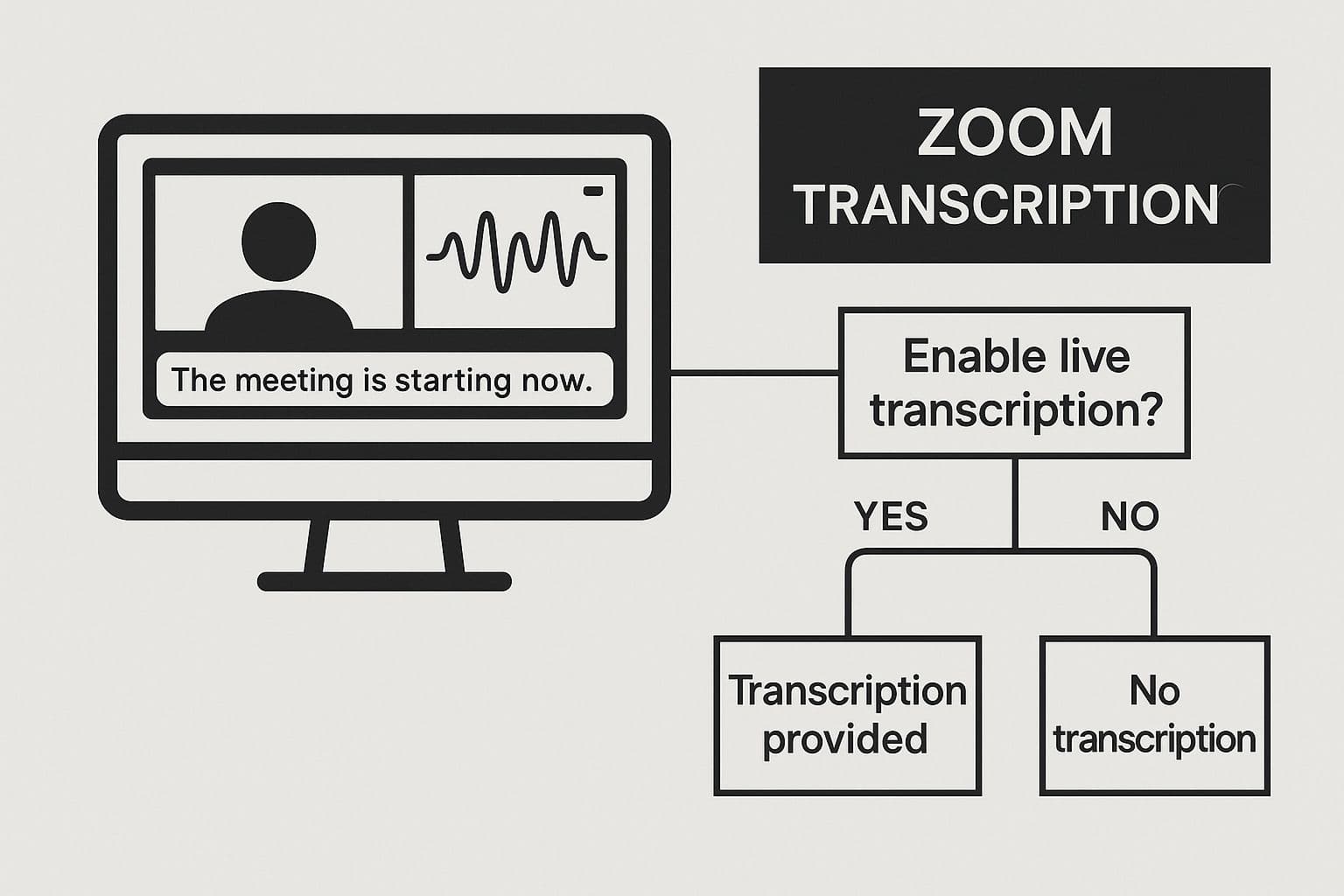
This snapshot shows how effortlessly transcription lives right in your Zoom window, turning live conversation into text you can review on the fly.
When To Stick With Zoom’s Built-In Tool
Zoom’s own transcription works beautifully for straightforward tasks. Here’s when it makes sense:
- Need Basic Records: Grab a plain text file to confirm a number or revisit a decision.
- Prioritize Convenience: No extra software or billing—everything’s under one roof.
- Have Occasional Needs: You don’t host transcripts for every meeting, only on demand.
For many small teams or occasional users, this streamlined setup is more than enough. It simply records your calls without fuss.
When To Upgrade To Third-Party AI Tools
Once you want transcripts that do more—like summarizing points or plugging into your project tracker—you’ll want a dedicated service. Consider these benefits:
- Identify Speakers Automatically: Assign names to voices for clearer context.
- Get Higher Accuracy with Jargon: Build a custom vocabulary so industry terms never get mangled.
- Generate Automatic Summaries: Skip the scroll—receive concise overviews with action items highlighted.
- Integrate with Other Apps: Send tasks directly to Asana or Slack from your meeting notes.
To explore top performers, check out our roundup of the 12 best meeting transcription software options for 2025.
Zoom Native Transcription vs Third-Party AI Tools
Below is a side-by-side look at how built-in transcription stacks up against specialized AI platforms:
| Feature | Zoom Native Transcription | Third-Party AI Tools |
|---|---|---|
| Price | Included with paid plans | Varies by subscription tier |
| Speaker Identification | Not available | Automatic speaker labels |
| Custom Vocabulary | Limited | Full support for glossaries |
| Summary Generation | Manual | Automated key points |
| Integrations | Zoom only | Apps like Asana, Slack, CRMs |
Use this comparison to weigh what matters most—cost, accuracy, integration—and choose the tool that best fits your workflow.
Pro Tips for Getting Crystal-Clear Transcripts

A great Zoom meeting transcription isn't just about the AI; it all starts with high-quality audio. Even the smartest transcription software will stumble over mumbled voices, background chatter, and people talking over each other. It really is a classic case of "garbage in, garbage out."
The good news is that a few small adjustments can make a world of difference in your transcript's accuracy. These aren't complicated technical fixes, just simple habits you and your team can start using today.
Master Your Audio Environment
Your audio setup is hands-down the biggest factor in transcription quality. Sure, your laptop's built-in mic is convenient, but it picks up everything—your keyboard clicking, room echo, and even the whirring of the computer fan.
An external USB microphone is one of the single best investments you can make for better audio. It’s designed to focus on your voice and tune out all that distracting background noise, giving the transcription AI a much cleaner signal to process.
It’s not all about the gear, though. Your surroundings play a huge role. Try to:
- Find a quiet room. Spaces with soft furnishings like carpets, curtains, or even a bookshelf can absorb sound and cut down on echo.
- Wear headphones. This small step prevents the sound from your speakers from looping back into your microphone, which can confuse the transcription.
- Position your mic correctly. A good rule of thumb is to keep it about a hand's width away from your mouth.
Establish Clear Speaking Etiquette
How people talk during the meeting directly affects the final transcript. When everyone jumps in at once, the AI has to guess who said what, often mashing everything together into an unusable mess.
Set a few ground rules to keep the conversation clean. A simple and effective habit is to encourage everyone to use Zoom's "raise hand" feature before jumping in. This creates a natural pause and helps ensure only one person is speaking at a time.
It’s also helpful to have speakers re-introduce themselves if they haven't spoken in a while, especially on larger calls. This is a lifesaver when you're reviewing the transcript later and need to attribute a key decision or action item. For example, hearing "This is Sarah from marketing with a quick question..." provides perfect context.
Perfect Your Post-Meeting Workflow
Your job isn't quite done when the meeting ends. The raw transcript is a fantastic first draft, but a quick review session can turn it into a truly reliable document. You don't need to edit every single "um" and "ah." Just focus on what matters most.
I like to start by hitting Ctrl+F (or Cmd+F) to search for keywords, project names, or action-oriented phrases like "follow up" or "we will." This lets me jump right to the most important parts of the discussion. From there, I'll quickly clean up any misidentified names or technical jargon the AI didn't catch.
This scan-and-edit process usually takes just a few minutes, but it makes your Zoom meeting transcription so much more valuable for the whole team.
Turning Transcripts into Actionable Assets
A raw transcript is just a wall of text. But with the right approach, that text file can become a serious productivity tool, fueling everything from content creation to your team's entire workflow. The real value of a Zoom meeting transcription isn't just knowing what was said, but what you do with it afterward.
Let's be honest, a transcript that just sits in a folder is a missed opportunity. The trick is to weave that information directly into your team's day-to-day operations, turning conversations into concrete outcomes. It’s about moving past simple record-keeping and building systems that make your meetings work for you long after everyone has logged off.
Automate Your Follow-Up Workflow
Picture this: you've just wrapped up a client call where a bunch of action items were decided. Instead of spending the next 15 minutes manually typing up tasks in Asana or Trello, what if it was all done for you?
This is where many of the great third-party transcription tools really shine. They plug right into the apps you already use, like Slack, Jira, or Trello. By connecting your transcription service, you can set up simple rules that automatically create tasks when certain keywords pop up.
For example, a phrase like "I'll get that done by Friday" could instantly create a new card on your team’s Trello board, assigned to the right person with the correct due date. This kind of automation completely closes the gap between talking about something and actually doing it. If this sounds like a game-changer, you can learn more about how to find transcription tools with action item extraction.
This simple shift ensures nothing falls through the cracks and frees up your team to focus on the work that matters, not the admin that follows.
Repurpose Transcripts into Content Gold
A single, insightful conversation can be the source for a surprising amount of content. I've seen this happen time and again with customer interviews, product demos, or even internal brainstorming sessions. Your transcript is basically a goldmine for your marketing and content folks.
Let's walk through a real-world scenario. A marketing team has a 30-minute chat with a happy customer. From that one Zoom meeting transcription, they can easily:
- Write a Blog Post: Pull out the customer’s main challenges and how the product helped them to craft a detailed case study.
- Create Social Media Snippets: Lift a few powerful, direct quotes to use as killer testimonials on LinkedIn or X.
- Build a Case Study: Use the detailed story from the transcript to build a compelling narrative for the website.
- Improve an FAQ Page: Pinpoint common questions the customer asked and add the answers to the support docs.
This strategy maximizes the return on the time invested in every single meeting. It’s incredibly efficient.