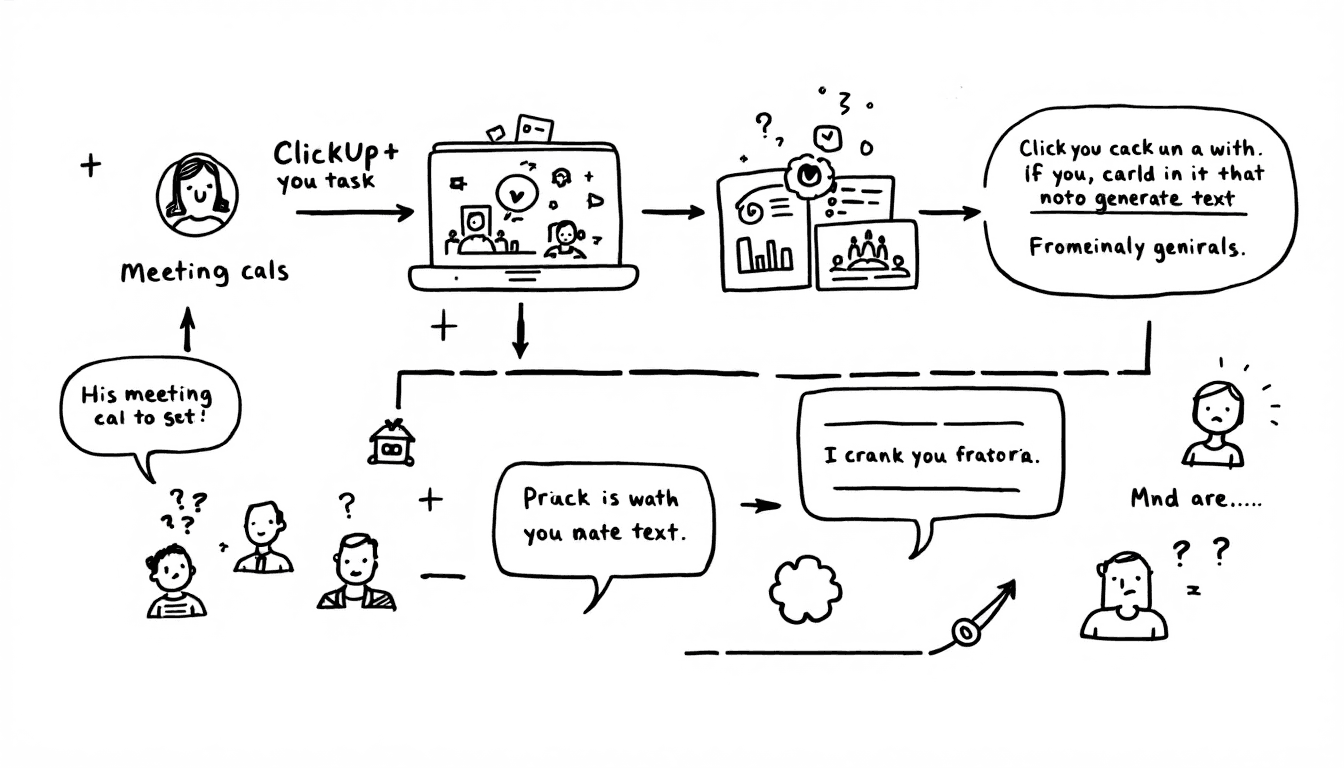

🎯 ClickUp Zapier Integration Overview
What You Can Automate
- ✓Auto-create tasks from meeting action items
- ✓Update project status based on meeting outcomes
- ✓Send team notifications with meeting summaries
- ✓Sync calendar events with project timelines
- ✓Track meeting ROI and productivity metrics
Popular Tool Integrations
- 🦦Otter.ai → ClickUp task automation
- 📹Zoom → ClickUp meeting summaries
- 📞Gong → ClickUp sales pipeline updates
- 🤝Calendly → ClickUp project scheduling
- 💬Slack → ClickUp status notifications
💰 ROI Impact
Teams using ClickUp Zapier automation report67% faster task creation, 45% improved project visibility, and 89% better follow-through on meeting commitments. The average setup pays for itself within 2-3 weeks.
🔧 Prerequisites & Initial Setup
Step 1: Account Requirements
🎯 ClickUp Account Setup
- • ClickUp Business Plan or higher (for API access)
- • Admin permissions for workspace integration
- • Custom fields enabled for automation data
- • Team spaces configured with proper permissions
- • Project templates created for consistency
⚡ Zapier Account Setup
- • Zapier Professional Plan (recommended for teams)
- • Premium app access for ClickUp integration
- • Multi-step Zap capabilities enabled
- • Team workspace with shared Zap access
- • Webhook and API access configured
Step 2: ClickUp API Configuration
Generate ClickUp API Token
- 1. Go to ClickUp Settings → Apps → API
- 2. Click "Generate" to create your personal API token
- 3. Copy and securely store the token (you'll need it for Zapier)
- 4. Test API access using a simple GET request to verify connectivity
Configure Custom Fields
- "Meeting Link", "Recording URL", "AI Summary"
- "Meeting Completed", "Action Items Created"
- 3. Configure priority and urgency fields based on meeting content
- 4. Create relationship fields to link tasks to original meetings
Step 3: Zapier ClickUp Integration
Connect ClickUp to Zapier
- 1. In Zapier, click "Make a Zap" and search for ClickUp
- 2. Choose "ClickUp 2.0" (the latest version with full features)
- 3. Click "Sign in to ClickUp" and authorize Zapier access
- 4. Enter your API token when prompted for enhanced permissions
- 5. Test the connection by creating a simple task
Configure Workspace Access
- 1. Grant Zapier access to all relevant ClickUp workspaces
- 2. Configure team permissions for automated task creation
- 3. Set up default assignees and watchers for different automation types
- 4. Test workspace connectivity across all integrated spaces
🤖 Meeting AI Tool Integrations
🦦 Otter.ai → ClickUp Automation
Automation Workflow
Setup Instructions
- 1. Enable Otter.ai webhook in integrations settings
- "New Conversation Summary"
- 3. Add formatter to extract action items using AI
- 4. Map summary content to ClickUp task description
- 5. Set up conditional assignee logic based on content
- 6. Configure Slack notifications for team updates
Sample Zap Configuration:
Otter.ai → New Summary Available
Only process summaries with action items detected
Action 1:Create ClickUp task with summary as description
Action 2:Add custom fields (meeting date, participants, recording link)
Action 3:Send Slack message to project channel with summary
📹 Zoom → ClickUp Automation
Advanced Integration Features
- • Automatic meeting recording processing
- • AI-powered transcript analysis for key decisions
- • Participant tracking and follow-up assignment
- • Calendar integration for project timeline updates
- • Custom meeting types with different automation rules
Setup Requirements
- • Zoom Pro account with API access enabled
- • Zoom App created with webhook permissions
- • Zapier webhook URLs configured in Zoom settings
- • AI analysis tools (OpenAI/Anthropic integration)
- • Custom ClickUp templates for different meeting types
Pro Tip: Meeting Classification
Use Zoom meeting topics to automatically categorize and route tasks to the correct ClickUp spaces. For example: "[SALES]" prefix creates tasks in Sales space, "[DEV]" goes to Development space.
📞 Gong → ClickUp Sales Automation
Sales Call Analysis Workflow
Automated Actions:
- • Deal progression updates based on call sentiment
- • Follow-up task creation with intelligent timing
- • CRM field updates with conversation insights
- • Manager alerts for high-value opportunities
ClickUp Integration:
- • Tasks created in deal-specific ClickUp folders
- • Priority set based on deal size and urgency
- • Custom fields populated with call metadata
- • Team notifications for collaborative opportunities
📋 Ready-to-Use Workflow Templates
🎯 Project Standup Automation
Daily standup meeting ends (Zoom/Teams webhook)
- • Extract blockers and progress updates
- • Identify new action items and owners
- • Calculate sprint velocity and timeline impact
ClickUp Actions:
- • Create tasks for identified blockers
- • Update project status and timeline
- • Assign follow-up actions to team members
- • Send progress summary to stakeholders
Setup Time: 15 minutes | ROI: 3-5 hours saved weekly
💼 Client Meeting Follow-up
Client meeting recording processed (Otter.ai/Gong)
- • Analyze client sentiment and satisfaction
- • Extract deliverables and timeline commitments
- • Identify upsell opportunities and concerns
ClickUp Actions:
- • Create project tasks with client requirements
- • Set up automated milestone tracking
- • Schedule check-in meetings and reminders
- • Update client portal with meeting summary
Setup Time: 20 minutes | ROI: 4-6 hours saved weekly
🚀 Sprint Planning Automation
Sprint planning meeting completed (Teams/Zoom)
- • Parse story point assignments and estimates
- • Extract sprint goals and success criteria
- • Identify dependencies and risk factors
ClickUp Actions:
- • Create sprint folder with all planned tasks
- • Set up automated burn-down tracking
- • Configure daily standup meeting templates
- • Schedule sprint review and retrospective
Setup Time: 25 minutes | ROI: 5-8 hours saved per sprint
📈 Executive Review Automation
Leadership team meeting ends (Zoom/Teams)
- • Extract strategic decisions and initiatives
- • Identify budget and resource allocations
- • Parse timeline commitments and deadlines
ClickUp Actions:
- • Create executive initiative tracking folders
- • Assign department leads to strategic projects
- • Set up automated progress reporting
- • Schedule follow-up review meetings
Setup Time: 30 minutes | ROI: 10-15 hours saved monthly
🔬 Advanced Automation Scenarios
🏢 Multi-Department Workflow Coordination
Cross-Functional Project Automation
Trigger Events:
- • Product roadmap meetings (Engineering + Product)
- • Go-to-market planning (Sales + Marketing)
- • Budget review sessions (Finance + Operations)
- • Compliance meetings (Legal + Operations)
Automated Outcomes:
- • Tasks distributed across department spaces
- • Cross-team dependencies automatically linked
- • Timeline coordination with conflict detection
- • Stakeholder notifications with role-specific summaries
Implementation Example: Product Launch
When a product launch planning meeting ends, Zapier automatically creates coordinated task sets across multiple ClickUp spaces:
Engineering Space:
- • Feature development tasks
- • QA and testing milestones
- • Documentation requirements
Marketing Space:
- • Campaign development tasks
- • Content creation deadlines
- • Launch event planning
Sales Space:
- • Training material creation
- • Pricing strategy tasks
- • Customer communication plan
🤖 AI-Enhanced Meeting Intelligence
Intelligent Content Analysis
- Sentiment Detection:AI analyzes meeting tone to adjust task priorities and urgency levels
- Risk Identification:Automatic detection of project risks mentioned in conversations
- Decision Tracking:AI identifies and logs key decisions with timestamps and participants
- Commitment Monitoring:Tracks promises and commitments made during meetings
Predictive Automation
- Smart Assignment:AI suggests best team member for each task based on skills and workload
- Timeline Prediction:Estimates task completion times based on historical data
- Resource Planning:Identifies when additional resources may be needed
- Follow-up Scheduling:AI determines optimal timing for check-ins and updates
Setup Requirements for AI Enhancement:
- • OpenAI or Anthropic API integration via Zapier
- • Custom prompt templates for different meeting types
- • ClickUp custom fields for AI-generated insights
- • Feedback loop setup for continuous AI improvement
🔄 Continuous Improvement Loop
Automated Performance Tracking
Metrics Collected:
- • Task completion rates from meeting action items
- • Time from meeting to task completion
- • Meeting follow-through accuracy
- • Team productivity improvements
Optimization Actions:
- • Workflow adjustments based on completion data
- • Assignment algorithm improvements
- • Meeting format recommendations
- • Tool usage optimization suggestions
Weekly Automation Report: Zapier automatically generates a ClickUp task with automation performance metrics, including time saved, tasks created, and improvement recommendations for the following week.
🛠️ Troubleshooting & Optimization
🚫 Common Issues & Solutions
API Rate Limiting
Zaps failing due to too many API calls to ClickUp
- • Add delay steps between actions (2-5 seconds)
- • Use bulk operations where possible
- • Implement intelligent filtering to reduce calls
- • Upgrade to ClickUp Enterprise for higher limits
Duplicate Task Creation
Multiple Zaps creating duplicate tasks for same meeting
- • Use unique meeting IDs for deduplication
- • Implement "Find or Create" logic in Zaps
- • Add custom field checks for existing tasks
- • Set up proper trigger filtering
Inconsistent Data Formatting
Meeting data appears differently across various AI tools
- • Use Zapier Formatter to standardize data
- • Create data mapping templates
- • Implement validation checks in workflows
- • Set up fallback formatting rules
⚡ Performance Optimization Tips
Workflow Efficiency
- Batch Processing:Group related actions together to reduce API calls
- Smart Filtering:Use paths and filters to process only relevant meetings
- Async Operations:Use webhooks for real-time processing without delays
- Error Handling:Implement retry logic and error notifications
Cost Optimization
- Task Consolidation:Combine multiple actions into single Zaps
- Intelligent Triggers:Use specific triggers rather than polling
- Resource Sharing:Share Zaps across team members to reduce costs
- Usage Monitoring:Track Zap runs to optimize for plan limits
Performance Monitoring Dashboard
Create a ClickUp dashboard to track automation performance: task creation rates, error frequencies, time savings, and team adoption metrics. Update weekly with automated reports.
📈 Scaling Your Automation
Phase 1: Team Foundation (Weeks 1-2)
- • Start with 1-2 core meeting types (standups, client calls)
- • Focus on basic task creation and notification workflows
- • Train 3-5 power users as automation champions
- • Establish success metrics and tracking methods
Phase 2: Advanced Features (Weeks 3-4)
- • Add AI analysis and intelligent assignment
- • Implement cross-department workflows
- • Create custom templates for different teams
- • Set up performance monitoring and reporting
Phase 3: Organization-wide (Month 2+)
- • Roll out to all departments with customized workflows
- • Implement predictive analytics and optimization
- • Create automation governance and best practices
- • Establish continuous improvement processes
🔗 Related Resources & Tools

🦦 Otter.ai Integration Guide
Complete setup guide for integrating Otter.ai with ClickUp via Zapier for automated meeting task creation.

🎯 ClickUp AI Features
Explore ClickUp's native AI capabilities and how they complement Zapier automation workflows.

🤖 Meeting Automation Workflows
Comprehensive guide to automating your entire meeting workflow with multiple tools and platforms.
🎯 Take the AI Tool Quiz
Get personalized recommendations for the best ClickUp integrations and automation tools for your team.
Ready to Automate ClickUp with Zapier? 🚀
Start implementing these automation workflows today and join thousands of teams saving 5-10 hours weekly with intelligent meeting integration!
