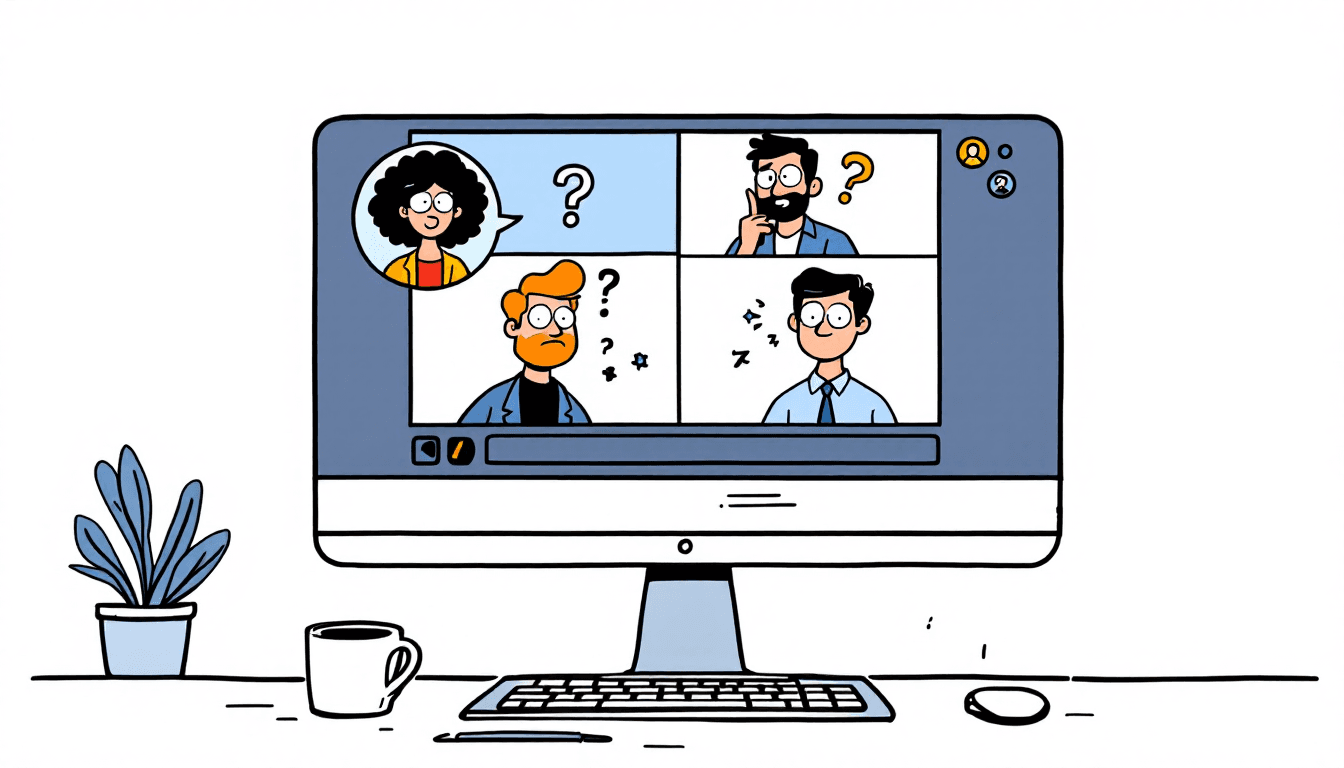


🌍 Microsoft Teams Spanish Language Support
✅ What's Supported
- Spanish (Spain)- Primary dialect with best accuracy
- Spanish (Mexico)- North American Spanish support
- Spanish (Argentina)- Limited regional support
- Live Captions- Real-time Spanish subtitles
- Meeting Transcripts- Post-meeting Spanish transcription
- Speaker Identification- Basic speaker labeling
⚠️ Limitations
- 70-85% accuracy- Lower than dedicated tools
- Accent sensitivity- Struggles with regional dialects
- No real-time editing- Can't correct errors during meeting
- Limited punctuation- Basic formatting only
- No custom vocabulary- Can't add industry terms
- Storage limitations- 60-day transcript retention
⚙️ How to Enable Spanish Transcription in Teams
Step 1: Enable Live Captions
- Join your Teams meeting
- Click the"More actions" (...)button in the meeting controls
- Select"Turn on live captions"
- Choose"Spanish"from the language dropdown
- Captions will appear at the bottom of your screen
Pro Tip:Set Spanish as your default language in Teams settings to avoid manual selection each meeting.
Step 2: Enable Meeting Transcription
- During the meeting, click"More actions" (...)
- Select"Start recording"(required for transcription)
- Go to"More actions"again and choose"Start transcription"
- Select"Spanish"as the transcription language
- Transcription will begin automatically
Only meeting organizers and presenters can start transcription. Participants need permission.
Step 3: Configure Admin Settings (IT Teams)
- Go toMicrosoft Teams admin center
- Navigate to"Meetings" → "Meeting policies"
- Select your organization's meeting policy
- Enable"Allow transcription"and"Allow live captions"
- Set"Live captions in meetings"to "Enabled"
- Save changes (may take 24 hours to propagate)
📊 Spanish Transcription Accuracy Comparison
| Platform | Spanish Accuracy | Dialects Supported | Real-time Editing | Pricing |
|---|---|---|---|---|
| Microsoft Teams | 70-85% | Spain, Mexico, Argentina | ❌ Post-meeting only | Free with subscription |
| Notta | 96-98% | 58 Spanish variants | ✅ Real-time | $8.17/mo |
| Supernormal | 94-97% | 60+ languages | ✅ Bot-free | $10-19/mo |
| Fireflies | 92-96% | 69+ languages | ✅ Advanced editing | $10-19/mo |
| Otter.ai | 75-88% | Limited Spanish | ✅ Real-time | $8.33-20/mo |
🎯 Tips to Improve Spanish Transcription Accuracy in Teams
🎤 Audio Quality Tips
- Use high-quality headsets or external microphones
- Choose quiet environments with minimal background noise
- Position microphone 6-8 inches from your mouth
- Speak clearly and at moderate pace (not too fast)
- Avoid overlapping conversations
🗣️ Speaking Techniques
- Pronounce words clearly, especially technical terms
- Use standard Spanish pronunciation when possible
- Pause between sentences for better punctuation
- Spell out difficult names or acronyms
- Repeat important information clearly
⚙️ Technical Setup
- Ensure stable internet connection (10+ Mbps)
- Use Teams desktop app instead of web browser
- Close unnecessary applications to reduce CPU load
- Test audio settings before important meetings
- Have a backup transcription method ready
📝 Post-Meeting Best Practices
- Download transcripts immediately after meetings
- Review and edit transcripts for accuracy
- Save corrected versions for future reference
- Share edited transcripts with meeting participants
- Create templates for recurring meeting types
🔧 Common Issues and Solutions
❌ Problem: Transcription Not Available
Can't find transcription option in meeting controls
- Check if your organization allows transcription (admin setting)
- Ensure you're a meeting organizer or presenter
- Verify you have proper Teams license (Business or Enterprise)
- Try starting recording first, then transcription
- Update Teams to latest version
⚠️ Problem: Poor Spanish Recognition
Frequent errors, wrong words, missing segments
- Verify Spanish is selected as transcription language
- Improve audio quality with better microphone
- Reduce background noise and echo
- Speak more slowly and clearly
- Consider switching to dedicated Spanish transcription tool
⚡ Problem: Regional Accent Issues
Specific words consistently misrecognized, accent-related errors
- Try different Spanish dialect settings (Spain vs Mexico)
- Use more standard pronunciation for technical terms
- Consider hybrid approach: Teams + manual editing
- Evaluate specialized tools with better accent support
- Train team members on clear speaking techniques
🚀 Better Alternatives for Spanish Transcription
Top Recommended Tools for Spanish Teams
Notta - Best Value
- 96-98% accuracyfor Spanish
- 58 Spanish language variants
- Real-time editing capabilities
- $8.17/month for 1,800 minutes
- Teams integration available
Supernormal - Bot-Free
- 94-97% accuracyfor Spanish
- No meeting bots required
- 60+ languages supported
- $10-19/month plans
- Advanced meeting templates
Fireflies - Enterprise
- 92-96% accuracyfor Spanish
- 69+ languages with dialects
- Advanced CRM integrations
- $10-19/month plans
- Enterprise security features
Why Consider Alternatives to Teams?
🎯 Accuracy Benefits
- 15-25% higher accuracythan Teams Spanish transcription
- Better recognition of regional Spanish dialects
- Superior handling of technical and business terms
- Advanced punctuation and formatting
⚡ Feature Advantages
- Real-time editing and correction capabilities
- Custom vocabulary for Spanish business terms
- Better speaker identification and separation
- Advanced search and highlight features
🏢 Enterprise Considerations for Spanish Teams
🔐 Security & Compliance
- Data Residency:Teams keeps data in your region
- GDPR Compliance:Built-in for European Spanish teams
- SOC 2:Enterprise-grade security standards
- Retention Policies:Configurable transcript storage
- Access Controls:Role-based permissions
💰 Cost Considerations
- No Additional Cost:Included with Teams license
- Storage Costs:May increase with transcript volume
- Training Investment:User education requirements
- Alternative Tools:$8-19/user/month for better accuracy
- ROI Calculation:Time saved vs accuracy improvement
🔮 Future of Spanish Transcription in Teams
🚀 Upcoming Improvements (2025-2026)
Expected Enhancements
- OpenAI Whisper Integration:Potential 90%+ accuracy improvement
- Real-time Editing:Live transcript correction capabilities
- Enhanced Dialect Support:Better regional Spanish variants
- Custom Vocabularies:Industry-specific Spanish terms
- AI Summarization:Intelligent Spanish meeting summaries
Timeline & Availability
- Q2 2025:Improved accuracy models expected
- Q3 2025:Real-time editing features
- Q4 2025:Enhanced dialect recognition
- 2026:AI-powered meeting insights in Spanish
- Preview Program:Early access for Enterprise customers

